Help?!
On this page, we have compiled general information about the Munich Transport Association (MVV), provided an overview of the MVV app’s features, and answered frequently asked questions (FAQs) about various aspects of the app. If you have any further questions, suggestions for improvement or encounter any problems, please feel free to contact the MVV Customer Service Team directly.
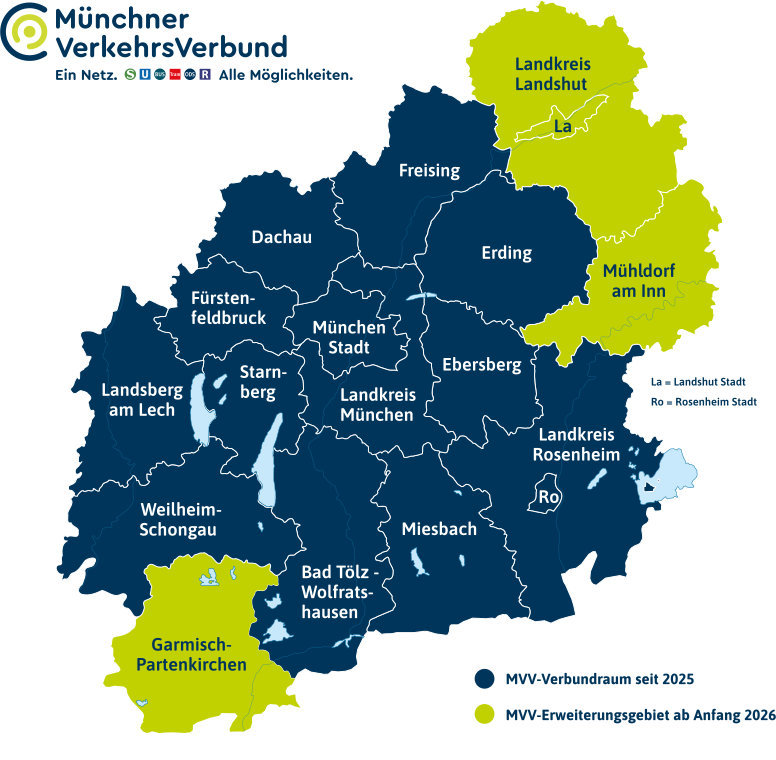
1 network. 1 timetable. 1 ticket. Under this motto, the Free State of Bavaria, the City of Munich, and the surrounding districts and independent towns work together across the board with over 50 transport operators within the Munich Transport Association (MVV) on public transport and mobility. Passengers throughout the network benefit from coordinated public transport timetables, tickets valid across the entire network and passenger information from a single source (for example via the MVV app). Whether you’re travelling by RegionalZug, S-Bahn, U-Bahn, tram, city, metro or regional buses, or using the MVV-integrated on-demand services. As of January 2026, the network area covers the districts of Bad Tölz-Wolfratshausen, Dachau, Ebersberg, Erding, Freising, Fürstenfeldbruck, Garmisch-Partenkirchen, Landsberg am Lech, Landshut, Miesbach, Mühldorf am Inn, Munich, Rosenheim, Starnberg and Weilheim-Schongau, as well as the state capital Munich, the independent cities of Landshut and Rosenheim, and stops in several neighbouring municipalities, including Kufstein. The network area thus covers over 400 municipalities with a total population of around 4.15 million (as of January 2026).
Not sure whether a connection is within the MVV network area and whether the MVV fare applies? Our MVV app (for Android and iOS) and the MVV information service (www.mvv-auskunft.de) show you the relevant MVV fare zones and the appropriate tickets for every journey within the MVV network. With just a few clicks, you can conveniently purchase the right ticket for your journey as an MVV Mobile Ticket in our app; it’s even easier with MVVswipe.
If you are reading this help page, the easiest way for you to access timetable information is via the MVV app. Our app provides information on MVV services across the entire transport network; it is impartial and covers all transport operators – and for almost all routes, it includes up-to-date punctuality and delay forecasts (provided this data is supplied by the vehicles or control centres). For each connection, our app also displays the fare zones travelled through, making it easy to purchase MVV mobile tickets – directly tailored to the connection you’re looking for.
Whilst the MVV app is primarily designed for modern smartphones and mobile use, our online portal “MVV-Auskunft” is particularly suitable for planning journeys on a PC with a larger screen. The map-based layout displays the same information in the route search as our app, but places slightly different emphasis on convenience features (print function, output of timetable posters and timetable book pages, but no HandyTicket and no location functionality). For older mobile phones, we also provide a browser-based mobile timetable service with a reduced range of functions (“MVV-Auskunft mobil”) as a fallback option, which allows us to reach devices on which our MVV app does not run, or whose screen is too small for the map-based MVV-Auskunft.
Prefer to get information the old-fashioned way?
We offer a wide range of printed materials, which are available free of charge at the MVG customer centres (Main Station, Marienplatz) and S-Bahn customer centres (Main Station, Ostbahnhof), as well as at district offices and town halls.
Our printed materials at a glance | ||
| MVV district brochures | All MVV lines in individual districts summarised in a single publication | Bad Tölz-Wolfratshausen, Ebersberg, Freising (city and district), Garmisch-Partenkirchen, Landshut (city), Mühldorf am Inn, Rosenheim, Starnberg, Weilheim-Schongau. |
| MVV mini-timetables | our leaflet for individual routes – ideal to take with you | Districts: Dachau (routes with timetable changes), Erding, Fürstenfeldbruck, Landsberg am Lech, Landshut (533, 534, 545, 672, 687), Miesbach, Rosenheim (selected routes), Starnberg, Weilheim-Schongau; Towns: Kolbermoor, Rosenheim, Weilheim; Municipality of Garmisch-Partenkirchen; Bayerische Regiobahn (RE 5, RB 54–58). |
| Network map leaflet | Special edition for the new transport association areas | Districts of Garmisch-Partenkirchen, Mühldorf am Inn, Landshut; independent city of Landshut. |
| Special publications | on current topics | as required |
In the following sections, we’ll give you a brief overview of the MVV fare structure. The Deutschland-Ticket is valid on all MVV routes, and you can purchase it as a subscription directly via the MVV app. You can find more detailed information on fares and tickets on our MVV website.
Fare structure
Since 10 December 2023, the MVV area has been divided into 13 fare zones for all ticket options. This allows for a precise definition of the area of validity and thus fair fares. Short journeys are therefore cheaper, whilst longer ones are slightly more expensive.
The city of Munich and some neighbouring district municipalities form the centre of the fare structure with Zone M. Zones 1 to 12 are grouped around Zone M according to their distance. Zone 1 borders directly on Zone M, and so on.
All stops within the MVV area belong to one or two fare zones. To ensure you purchase the correct MVV ticket for a journey, it is important to check which fare zones are passed through on that route. If a stop lies within two MVV fare zones, the cheaper of the two options may be used to determine the ticket’s validity.
Example: A journey by S-Bahn (S7) from Höllriegelskreuth to Hohenschäftlarn. This requires a ticket valid for fare zone 1, which is determined by the following sequence of stops:
Höllriegelskreuth (fare zones M/1)
Buchenhain (tariff zone 1)
Baierbrunn (fare zone 1)
Hohenschäftlarn (fare zone 1/2)
Short journey
A short journey is defined as any journey up to the fourth stop after boarding – provided that no more than two of these stops are covered by S-Bahn or U-Bahn, on the ExpressBus or on other included rail routes (on regional trains). You may combine different modes of transport and change services on a short journey. It does not matter if you cross a zone boundary. Interruptions to your journey are also permitted – provided the total journey time does not exceed one hour.
In municipalities outside Munich, all bus journeys within a municipality – regardless of the number of stops passed – are considered short journeys.
Important: There are generally no short journeys in on-demand transport (FLEX, FLEXlinie).
Carriage regulations
Our rules on carrying items apply to all passengers who are not travelling alone, are accompanied by a dog, or wish to transport large items. When carrying bicycles, restricted times (S-Bahn, U-Bahn) must also be observed.
MVV tickets and the Deutschland-Ticket
We have compiled detailed information on our range of tickets on our MVV website and linked to it in the list below. Our digital information tools (MVV app, MVV Information) help you find the right ticket and automatically display the required zones of validity, as well as a selection of tickets suitable for your journey, in the route planner. This makes it very easy to buy the ticket you need directly in our app as an MVV Mobile Ticket.
Tip: Since December 2024, we have been offering a new service in the MVV app called MVVswipe, which automatically calculates the fare. You don’t need to familiarise yourself with the MVV fare system; simply check in before your journey begins and check out when it ends.

The MVV app is a free, ad-free travel app for the Munich Transport Association (MVV) and is published by MVV GmbH. In the MVV app, you can find the right public transport connections and purchase the appropriate MVV mobile ticket (including the Deutschland-Ticket) in just a few clicks; modern payment methods such as Apple Pay and Google Pay are also supported. Since December 2024, you can also buy your tickets with MVVswipe – simply check in and set off without having to worry about fare details. Of course, the MVV app keeps you informed about timetable changes and disruptions, offers the most important network maps and overview maps for download, shows you a range of mobility options beyond public transport (e.g. bike, scooter and car sharing, carpooling, charging stations for electric vehicles and much more), and presents selected news from MVV.
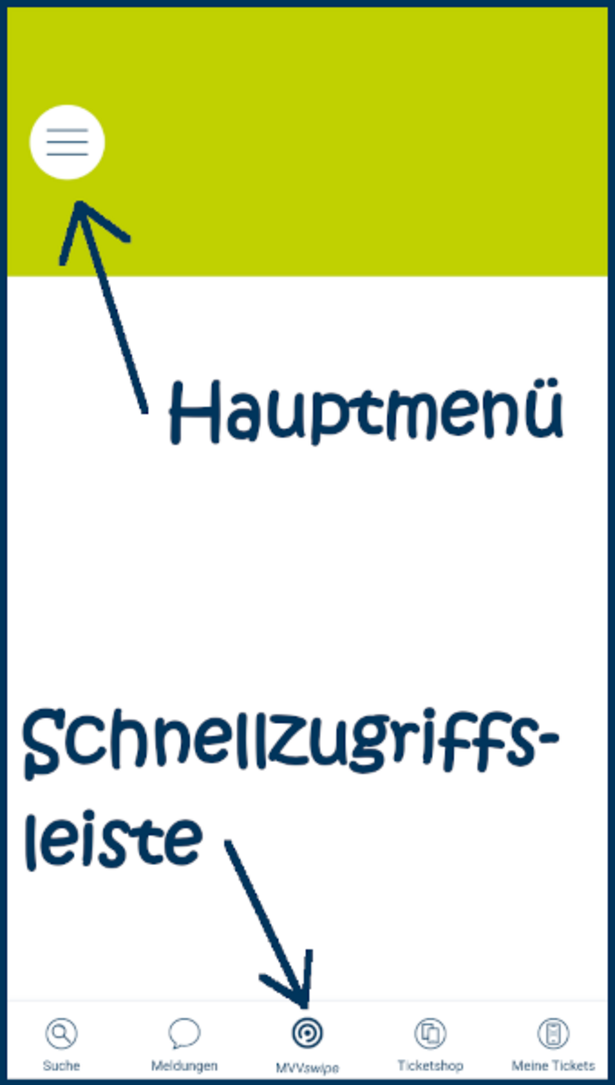
The MVV app’s home screen provides direct access to the route planner – and is therefore the starting point for a wealth of useful information about your journey, right through to the right mobile ticket. You can find all the other features of the MVV app via the two menus in our app. Our app has two levels of navigation, as we believe that this two-tier menu structure makes the app particularly easy to use:
- The quick-access bar:
The quick-access bar at the bottom of the screen ensures that the most important menu items and functions are always just a click away. By default, we have placed the search function, the service updates overview, MVVswipe (from December 2024), the ticket shop and your currently valid tickets there for you. If you’re not happy with this (because you don’t need certain functions or use others much more often), you can customise the quick access bar at any time and configure it in the way that’s most convenient for you. Simply long-press the bottom bar to access the configuration settings. There, you can place up to five functions on the quick access bar in almost any order. - The main menu:
The main menu gives you access to all the functions and services of the MVV app. This includes functions that aren’t accessible via the quick access bar. However, this menu also has the drawback of being a long list, meaning you have to scroll through functions you may never use or only use rarely. The main menu, which is designed in the form of a ‘hamburger menu’, can be accessed on all main pages via the menu icon at the top left of the screen.
Features & services in the app
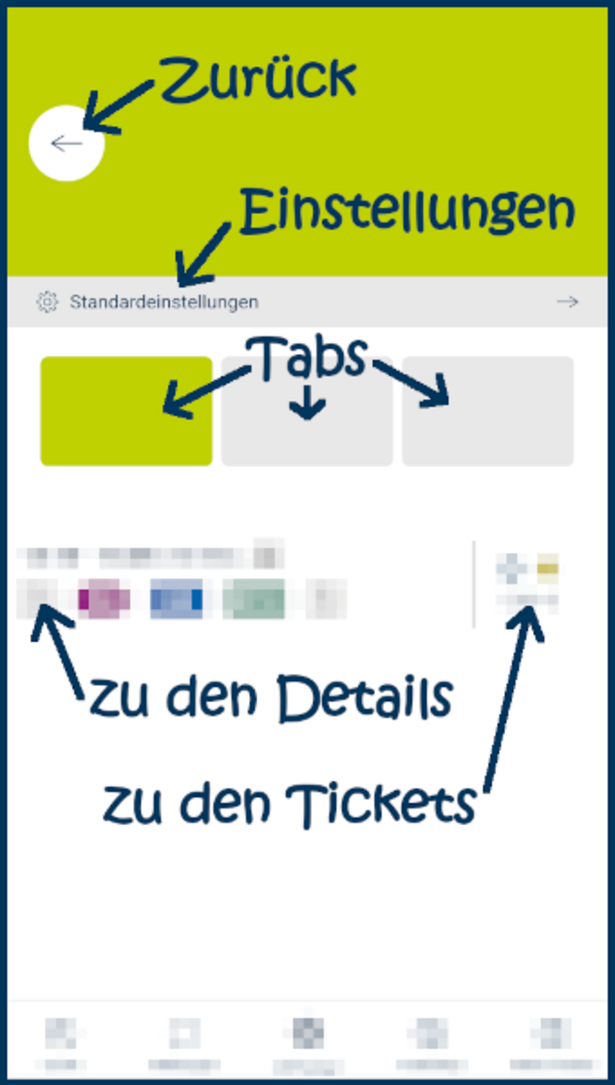
The "Search" menu option allows you to find a route from A to B. You can enter stops, addresses or points of interest (POIs) within the MVV network and neighbouring commuter catchment areas as your starting point and destination. To change the date and time, simply click on the time displayed. With the default settings, our route planner always searches for the fastest journey option, automatically taking into account all live data transmitted by vehicles and control centres (punctuality forecasts, delay information, disruption reports, etc.). The app also displays all available notifications and capacity forecasts. In our app’s settings, you can customise the search – for example, you can exclude stairs or specifically search for connections with few changes. In the settings, you can also specify whether the starting point should always be pre-set to your current location, or whether you would like to enter the starting point anew for each search.
In addition to public transport options, our app can also show you travel suggestions involving shared vehicles (bike, car and scooter sharing) or recommendations for Park & Ride facilities, if you wish. Simply click on the individual tabs on the results page. The app then searches for the best possible combinations of the various mobility options, which is helpful, for example, when there are gaps in public transport timetables or connections. The number of mobility options included is constantly being expanded.
By clicking on the journey suggestion that suits you, you’ll see all further details (e.g. walking routes or transfer points).
By clicking on the fare, you’ll see suitable ticket suggestions and can purchase the one you want as an MVV Mobile Ticket via the shopping basket icon.
To refresh a search, simply use a gesture control and pull down the screen (pull-to-refresh).
With the MVV app, you can easily buy a wide range of MVV tickets digitally. You can either use the journey planner to find the right ticket for your journey, or – if you already know exactly which ticket you need – go even faster by selecting the ‘Ticket Shop’ menu option.
You can choose from the Deutschland-Ticket (as a subscription) as well as a wide range of MVV tickets: single tickets, multi-trip tickets, day tickets, weekly and monthly tickets, the connection ticket, the CityTourCard and the München Card.
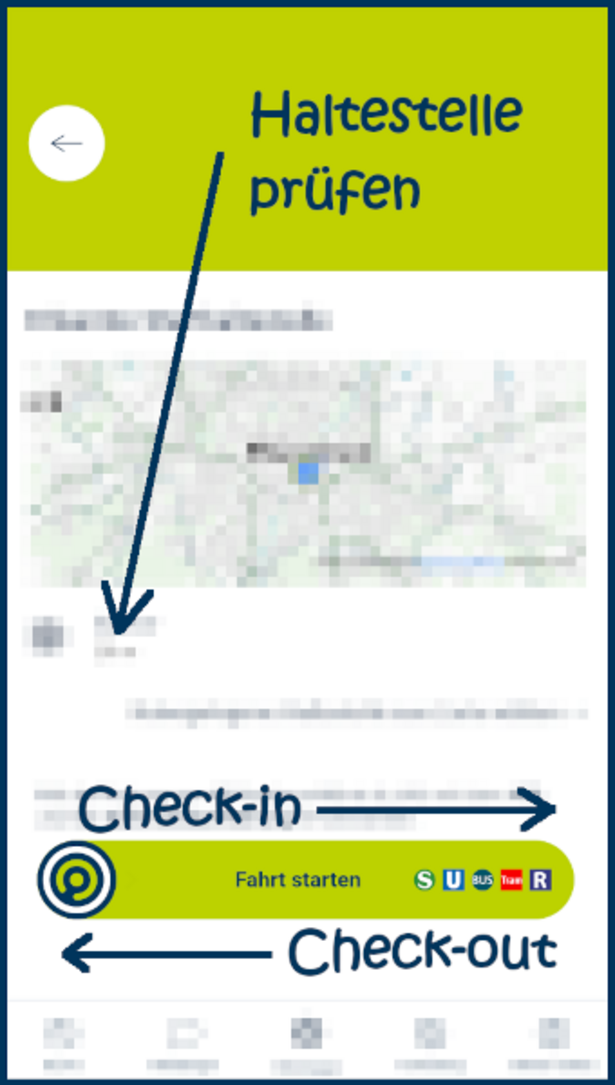
MVVswipe works on the principle of a check-in/check-out system. Before you start your journey – before boarding the relevant mode of transport or entering the restricted area – open the menu item of the same name and, if you haven’t already done so, grant the app permission to access your smartphone’s location data. After a brief check to ensure the system has recognised the correct stop, you can check in on the check-in page by swiping from left to right. As soon as the successful check-in is displayed on the screen, you are authorised to travel. The app has noted the departure stop using the smartphone’s location data and uses the information collected during the active check-in to determine your route and thus the required fare. Unlike with a conventional mobile ticket, you do not purchase your public transport ticket in advance, but receive authorisation to travel after a successful check-in. The actual payment is then processed by MVVswipe afterwards. During a ticket inspection, the travel authorisation can be accessed via the "MVVswipe" menu item or displayed by simply clicking on "My Tickets".
As soon as you have completed your journey after alighting from the vehicle or leaving the fare-paying area of the station, you can check out – again using a swiping motion, this time from right to left. Please also check here before swiping whether the system has recognised the correct alighting stop or is displaying it on the screen.
The system will then calculate the correct fare for the journey made. If you make several journeys within the MVV network in a single day, these are included in the calculation; with MVVswipe, you are only charged once a day.
MVVswipe can be used on all transport services and routes integrated into the MVV network throughout the entire network area. Exceptions currently include on-demand services (e.g. FLEX, RufTaxi), the Bergbus and other specially marked transport services.
In the notifications overview, you can find current timetable disruptions (e.g. due to service disruptions) and planned timetable changes (e.g. due to engineering works or events). Where data is available, you will not only find out the time and (expected) duration of timetable changes, but also receive all further information on the matter (e.g. links to construction site timetables). As with the route planner, we use a dedicated, Bavaria-wide backend system into which the individual transport companies and networks feed the necessary data and information.
The news overview is route-specific. Using the filter option (via the transport icons at the top), the favourites selection (via the star icon on the right) or the search function (enter the route number), you can quickly find the news items available for your chosen route.
In this section, you can view the next departures (or arrivals) for any stop – in real time for most routes.
Instead of stops, you can also enter your current location or any addresses and points of interest (POIs), and the app will then show you the departures (or arrivals) for nearby stops. To refresh the displayed departures – for example, to check at short notice whether the punctuality/delay forecast has changed – you can use a simple swipe gesture and pull the screen down from the top (pull-to-refresh).
To switch between departures and arrivals, you need to tap briefly on the displayed time and then select ‘Arrival’ in the settings window that opens and confirm.
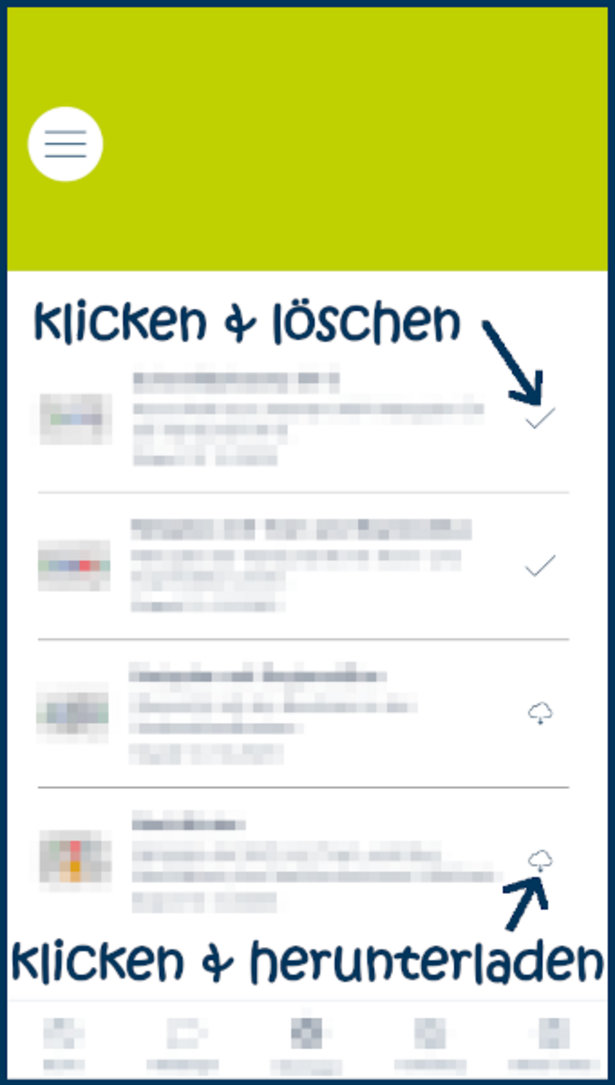
Under the "Network maps" menu item in the MVV app, you can download a selection of various network and overview maps. Our maps provide a good overview of public transport within the MVV network area and beyond. As not all our maps are of interest to everyone, not all map sets are equally suitable for use on mobile devices, and the maps also need to be updated regularly, we do not include the maps directly in the app, but offer you the option to download the maps that interest you. To download, simply click on the download icon on the right. Maps that have already been downloaded are marked with a tick. You can open them directly in the app by clicking on the name or description. You can delete network maps you no longer need at any time by clicking on the tick icon.
First things first: you can use many of the MVV app’s features without registering or logging in at all. However, a verified user account is required for some services (e.g. booking on-demand services) or strongly recommended (e.g. purchasing MVV mobile tickets). For these services, there is an overview page under the menu item “Profile and login details” where you can view your profiles and details. There are currently two separate user accounts in the MVV app. One user account is used for purchasing MVV mobile tickets, the other for booking on-demand services. Of course, you only need to register for the service you actually wish to use.
MVV-ID: With this account, you can use MVVswipe, book journeys with the FLEX and the FLEXlinie, and reserve seats on the BergBus. We will gradually be offering further services for this account.
Ticketshop ID: Depending on your chosen payment method, you can buy MVV HandyTickets without registering, but it’s quicker and more convenient if you save your details with a one-time registration. In future, we would like to enable the purchase of HandyTickets directly via the MVV-ID. Until then, however, there is a separate Ticketshop ID for the Ticketshop, which allows you to register independently of the MVV-ID.
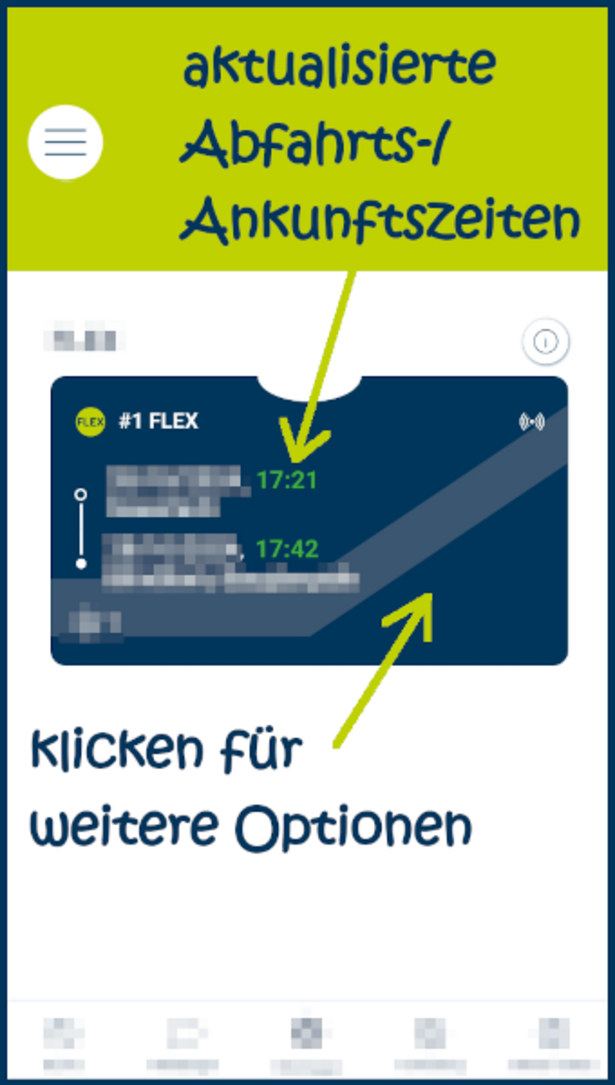
If you have booked a journey on the FLEX or a FLEX line via the timetable enquiry service, or reserved seats on the BergBus, your bookings will be displayed under this menu item. Here you can also view the updated departure and arrival times for the on-demand services you have booked. Clicking on the relevant booking will bring up further options, such as purchasing a suitable mobile ticket, viewing the journey details or viewing the route on the map.
Under this menu option, you can view your currently valid tickets at the touch of a button during a ticket inspection. It doesn’t matter whether these are purchased MVV Mobile Tickets or MVVswipe travel authorisations.
Please note that tickets must first be transferred to your smartphone after purchase before they appear under "My Tickets". This usually happens automatically and immediately after purchase; however, for season tickets (Deutschland-Tickets), you may need to access the tickets once at the start of the month via the "Ticketshop" menu option.
Compared to other apps, the MVV app offers a wide range of customisation options, particularly for tailoring journey search results to your own preferences, thereby catering to the needs of as many passengers as possible. Other apps often offer only ‘standard’ options in this regard.
For example, you can set the app not to search for the fastest route, but instead for journeys with few changes or short walking distances. With accessibility settings (e.g. no use of stairs), you may have to accept a slightly longer route, but you will only be offered connections via stops that are easily accessible by wheelchair or pushchair. You can also configure transport modes, walking speeds and the inclusion of shared mobility services in this menu option. If you have a Deutschland-Ticket or an MVV season ticket, you can save the fare zones covered by your ticket in the settings – the route search will then show you, for individual journeys, a small icon in the journey details indicating whether the zones travelled through are covered by your ticket, or whether you may need a connecting ticket.
In the settings, you’ll also find options to personalise the app itself – for example, how delay forecasts are displayed, whether you want to enter a start and destination for search queries, or whether the start location should be pre-filled with your current position.
Please note that some settings also have a direct impact on search results – for example, if you select the ‘Bicycle transport’ option, bus connections will no longer be suggested.
Under this menu item, you’ll find the latest news about MVV and can also browse through recent issues of our passenger magazine, "conTakt".
Frequently asked questions about the MVV app
Which operating systems is the MVV app available for?
The MVV app is available for Android and Apple iOS.
For Android devices, we recommend Android versions with Google Services installed. Unfortunately, with so-called custom ROMs, problems may arise when using our app in conjunction with Google Services.
Please note that older operating system versions may not be fully supported, or may no longer be supported at all. Where possible, we continue to make older versions of our MVV app available in the app stores to reach as many devices as possible. However, these older app versions do not (or no longer) offer the full range of functions.
We ask for your understanding that, due to cost-benefit considerations and the fast-paced nature of the market, we are unable to support less common operating systems, such as Windows Phones. For incompatible devices, we recommend our mobile web-based information portal at www.mvv-auskunft.mobi (further information on mobile information).
Where can I download the MVV app?
We offer the MVV app on the Google Play Store, the Apple App Store and the Huawei AppGallery.
Please understand that we cannot offer the MVV app for download outside the stores mentioned above.
Why does the app require so many permissions during installation?
The MVV app offers a number of convenient features which, depending on the operating system, require certain permissions during installation or when the app is launched for the first time. For example, access to your location allows connections to be calculated from your current position or stops in the vicinity to be searched for. Access to contacts allows you to purchase tickets for fellow passengers with minimal effort (simply select a contact from your address book; the contact details are then automatically copied into the relevant form fields, so there is less typing involved).
Some platforms group certain permissions into categories; for example, in certain operating system versions, Android refers to access to “photos, media and files” in order to be able to cache the map sections used in our app on the smartphone or to use memory cards. However, no personal data is expressly transmitted or analysed in this process. User statistics are compiled anonymously at most, provided that the collection of user statistics has been explicitly consented to in the “Settings”.
For data protection enquiries, please refer to the privacy policy for the MVV app, which we link to here, in the app stores and within the app.
What features does the MVV app offer?
The MVV app offers two main functions: comprehensive timetable information and the purchase of MVV mobile tickets. In addition, a range of supplementary services and features are available to provide the best possible mobility information within the MVV network area.
You can find a description of the individual features on the MVV app help page. If you have any questions, MVV Customer Services will be happy to help.
To what extent are current service disruption reports displayed in the MVV app?
We immediately publish all disruption reports provided to us by the relevant transport operators for display in the MVV app. The text notifications are displayed in the departure monitor, in the journey information and summarised in the notification overview. In future, we will also offer a service to automatically inform users of timetable deviations (so-called push notifications).
Please understand that we have no influence over the scope and content of the disruption reports provided to us.
There are other apps for public transport too; why should I use the MVV app?
As MVV, we have been responsible for network-wide passenger information for decades. In addition to printed information media such as network maps and mini-timetables, we have also been offering our passengers digital information channels for a long time. These include our MVV information service on the internet and the MVV app (formerly MVV Companion) for Android and iOS.
Passengers benefit not only from a one-stop shop for timetable information and our wealth of experience, but above all from the continuous developments and new features, which are closely aligned with actual needs thanks to daily customer feedback and suggestions for improvement submitted by passengers.
Our app features an intuitive, user-friendly interface, comprehensive timetable information (including FLEX, MVV-RufTaxi, car-sharing and bike-sharing, but also, for example, a wide range of customisation options such as accessible travel connections), useful additional information (e.g. service updates and network maps) and broad compatibility with various smartphones and tablets (including older models). The MVV app is, of course, free of charge and contains no adverts.
Through agreements with other transport associations and participation in research projects, we help set standards and are always able to incorporate new possibilities for passenger information.
Which languages does the MVV app support?
The MVV app is currently available in German and English. In accordance with the recommendations of the operating system providers, the displayed language is set by default to the language settings of your smartphone. As soon as a system language other than German is selected, the MVV app will use English.
Depending on the app version, you can use the settings within the app to override the system language for most parts of the MVV app and select a specific language for the app.
How can I create favourites?
In the MVV app, you can create so-called favourites for start and destination points, connections and routes to access frequently needed information more quickly. This is always done via the history list or route list. Depending on the app version, you can create favourites by clicking on the star icon or the three-dot icon next to the relevant entry to mark a location, route or connection as a favourite and keep an eye on it at all times.
Favourites that are no longer needed can be removed at any time (using the same method).
Can the quick access bar be customised?
If you do not wish to buy tickets via the app, or are perhaps more interested in booking our on-demand services instead, you have the option to customise the quick access bar.
To do this, simply long-press (for a few seconds) on any icon in the bar. In the configuration dialogue that opens, you can place and sort various functions of our app on the quick access bar. A maximum of five icons can be placed on the ribbon.
How can I influence the results of the timetable search?
The ‘My Settings’ menu item (in some app versions: ‘Settings’) offers extensive options for customising the app and, in particular, the behaviour of the connection search. For example, you can search specifically for connections with short walking distances or connections with walking routes that do not involve stairs.
Changed settings are saved automatically.
Tip: You can easily access the settings options with a single click via the cog icon in the journey planner or departure monitor, without having to switch to the main menu.
Do I need to enable location services to use the MVV app?
The MVV app can, of course, also be used with the location services turned off. In this case, only certain features will not be available. For example, you won’t be able to calculate journeys from your current location or search for nearby stops.
How can I select my current location?
Your current location can be displayed, for example, on the interactive map (compass icon) or used directly as a start/destination in the route search (depending on the app version: select “Current location” or tap the compass icon in the start input field), provided that the smartphone’s location services are enabled and the MVV app has been granted permission to use the location.
Please note that successful and accurate location tracking depends on your current location and the location functionality of the smartphone you are using. Accurate location tracking via GPS is only possible ‘outdoors’, but not underground.
I can’t enter a starting point for the route search – what am I doing wrong?
The latest version of our MVV app introduces a new feature: it allows the starting point for the route search to be pre-set to your current location. This is particularly useful if you are frequently on the move and want to know, directly from your current location, the best way to reach your (next) destination. However, if the app is primarily used to plan a future public transport journey (from a different location) in advance, pre-setting the starting point is not particularly helpful. That is why the MVV app’s settings now include an option to tick a box to specify whether the start and destination should be entered when searching for connections, or whether the current location should always be used as the starting point.
Why doesn’t the MVV app always suggest the desired addresses and stops straight away when entering the start and destination?
The search for start and destination locations (addresses, stops and points of interest) takes various parameters into account, including possible typing errors, and is generally designed to display the most likely ‘match’ as quickly as possible, even when only a few letters have been entered. Abbreviations are also taken into account.
What usually works very well even when only a few letters have been entered can, in rare individual cases, nevertheless mean that stops or addresses sometimes have to be typed out in full to obtain the desired start or destination point. Using the favourites function can provide a further simplification.
Why aren’t all possible journey options shown to me?
Displaying every possible journey option would be neither clear nor practical. That is why, put simply, the MVV app always calculates the quickest connection. If the quickest route involves several changes, a more comfortable connection with fewer changes (but a longer total journey time) is usually suggested as an alternative.
Numerous other parameters are also taken into account in the background. Via the ‘Settings’ menu item, you can customise the journey search with a range of options and adapt it to your own needs. Naturally, the settings you have chosen are saved until the next time you change them and do not need to be adjusted again for every search. Any changes to your settings are highlighted in the journey overview.
How can I tell if my mode of transport is expected to be on time?
As soon as information on the expected punctuality of a mode of transport is available, this is displayed via an additional time indication and colour-coded (green times = expected to be on time, red times = expected to be delayed, no colour = no real-time information).
For delay forecasts, the standard settings of our app add extra minutes to the departure and arrival times in the journey information. A time such as 15:35 +2 therefore means that the service is expected to arrive or depart at 15:37, two minutes late. Cancellations of individual journeys can also be communicated using live data.
The display format for live data can be changed via the app’s settings. If you select “Forecast time with crossed-out scheduled time”, the estimated departure/arrival time is displayed instead of the estimated delay in minutes. In the event of longer delays, this display method requires less mental arithmetic, but it is no longer as easy to quickly read off information such as “2 minutes later today”. As both display methods have their advantages, the display can be customised in the latest version of our app.
Note: Transport operators strive to provide accurate live data for all journeys. However, it is not always possible to provide accurate punctuality forecasts. For example, traffic volume has a significant impact on bus journey times and can cause delays to increase or decrease at any time. Furthermore, the transmission of live data may be affected by the vehicle’s position (for example, due to a dead spot), meaning that live data is not always available continuously. At present, not all vehicles are technically equipped to transmit live data. Therefore, live times cannot (yet) be displayed for all journeys or modes of transport. Older versions of our app may also no longer be able to display live data.
Why might there be discrepancies between the displayed live times and the actual departure times?
The MVV app obtains timetable data via the Bavaria-wide timetable data hub DEFAS. The transport companies, transport associations and local authorities supplying data to this system strive to provide accurate live data for all journeys. However, live times are always a snapshot that can only approximate reality. Exact punctuality and delay forecasts are not possible due to numerous factors of uncertainty. For example, traffic volume (congestion) has a major influence on bus journey times and can cause delays to increase or decrease at any time. Or take the common example of vehicles parked on tram tracks – the resulting delay cannot be reliably predicted. Technical difficulties may also arise, for instance with data transmission or the deployment of replacement vehicles.
The live times displayed can therefore only ever serve as a guide.
Where we have the relevant information available, we therefore always try to supplement timetable deviations with text updates to better communicate the extent and impact of timetable changes.
How can I book on-demand services (FLEX, FLEXlinie)?
On-demand services such as FLEX and FLEXlinie are transport services that only operate when there is a demand. To determine whether there is a demand, the relevant journey must be booked in advance; passengers must therefore “register for the journey”, otherwise the journey will not take place. If the route search suggests a journey option with FLEX or a FLEXlinie that can be booked (please note the advance booking times!), the “Register for the journey”/“Book” button will be displayed in the journey details. In the next step after clicking the button, you simply need to specify the number of passengers travelling and any required wheelchair spaces. The system then checks the details provided and the actual availability of free seats and, if successful, prompts you to confirm the booking. Once confirmed, the booking is listed under the “My Bookings” menu item.
To book on-demand services, you must first register for an MVV ID. The easiest way to do this is via the app’s main menu under the “Profile and login details” menu item. Please note that the app has separate user accounts for booking on-demand services and purchasing HandyTickets in the ticket shop.
Further information on FLEX and FLEXlinie.
Why can departure and arrival times change for FLEX and FLEXlinie?
The timetable for a FLEXlinie covers all locations that can be served by the respective route. The departure times listed here are intended as a rough guide and are based on average journey times. As all FLEXlinien in the MVV network are on-demand services, only stops that have been explicitly booked are served. The journey time is reduced, for example, when demand is low, as stops are skipped and a shorter route can be taken. Conversely, if there are a number of passengers boarding and alighting at many different stops, the journey time may increase compared to the scheduled time.
The FLEX operates in a similar way. The difference is that there aren’t even indicative timetables here. This allows the FLEX to respond even more flexibly and quickly to booking requests. On the one hand, this enables relatively short advance booking periods; on the other hand, the actual departure and arrival times may change by a few minutes at relatively short notice due to additional passengers boarding.
Passengers who have booked their journey are informed of these demand-driven adjustments by email shortly before departure. However, the current times can also always be viewed in the MVV app under “My Bookings”.
Further information on FLEX and FLEXlinie
How can I delete my customer account?
The account for booking on-demand services (MVV-ID) can be cancelled directly in the MVV app with just a few clicks. The button for this is located under the menu item “Profile and login details” (section “MVV-ID”, view “Change login details”, tab “Delete account”).
The account can only be deleted after logging in and entering your password. Please note that this will delete the entire MVV-ID and all connected services (e.g. MVVswipe) will no longer be available for use.
Where can I find help with the MVV Mobile Ticket?
Due to specific queries, we have compiled a separate list of frequently asked questions (FAQ) for the MVV HandyTicket (please simply scroll down a little on this page).
If you have any further questions, MVV Customer Services will of course be happy to help. For written enquiries, please provide as much detail as possible (including information about your operating system and the ticket shop you have selected) so that we can respond quickly and efficiently.
Where can I get help with questions about the MVV app?
If you have any questions, problems or suggestions for improvement, the MVV Customer Dialogue is the right place to turn to. We are committed to continuously improving our MVV app, resolving any issues and implementing useful features. To this end, feedback from our passengers is very important to us.
For written enquiries, please provide as much detail as possible; for example, in the event of problems, a brief description of the error, the smartphone used, the operating system installed (including the version number), the version of the MVV app installed (the version number can be found at the very bottom of the main menu in our app), and screenshots illustrating the problem are also welcome. Thank you very much.
What can and should I do if the MVV app crashes or encounters errors?
Firstly, we would like to apologise for the error. We are constantly striving to improve the MVV app and eliminate errors. However, unfortunately, problems cannot be entirely avoided.
In most cases, simply closing the app completely and reopening it will resolve the issue. In some cases, uninstalling and then reinstalling the MVV app may also help (particularly if a problem arises after updates have been carried out). If the problem persists, the MVV Customer Service team will be happy to assist you.
For written enquiries, please provide as much detail as possible, e.g. a brief description of the error, the smartphone you are using, the operating system installed (including the version number), the version of the MVV app installed (the version number can be found at the very bottom of the main menu in our app), and screenshots showing the problem or error message. Thank you very much.
MVV-ID and Ticketshop-ID FAQs
The MVV-ID is the central account for many digital MVV services.
The MVV-ID has already been used for some time to access MVVswipe, book on-demand-services (such as FLEX and FLEXlinie), rent MyRadl bikes, and reserve seats on the BergBus.
Starting in late October 2026 (expected), the MVV-ID can also be used to purchase OnlineTickets and MobileTickets in the MVV-Ticketshop. At that point, the MVV-ID will become your single, central user account for the MVV-App. The separate Ticketshop-ID previously required for mobile and online ticket purchases will no longer be needed.
Please note: If you have purchased MVV-MobileTickets or OnlineTickets before October 2026, you will need an MVV-ID in the future to continue purchasing tickets and to access tickets you have already purchased, if applicable. Whether you need to take any action and what the best approach is for your situation is explained in the following questions and answers.
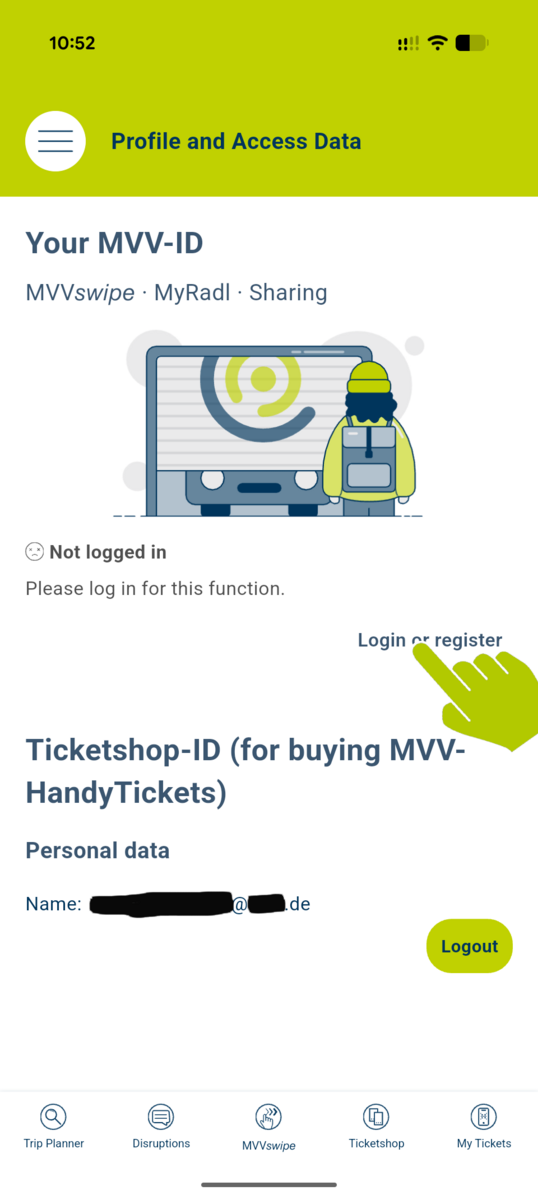
Creating an MVV-ID is free and only takes a few steps. The easiest way is to register in the MVV-App:
- Open the main menu in the MVV-App (via the three horizontal lines in the top left corner) and select “Profile and Login Details”.
- In the “Your MVV-ID” section, tap “Log In or Register”.
- In the window that opens, enter the email address you would like to use for your MVV-ID.
As an alternative to registration, you can also sign in with your Google or Apple account. However, for regular use, we recommend creating an MVV-ID. - The system will then check whether an MVV-ID is already associated with the email address provided. If one exists, you will be asked to enter your password.
- If no MVV-ID exists for that email address, the registration form will open. Enter your first name, last name, phone number, and choose a password.
- We will then send you an email to verify your email address. Click the link in that email to complete the registration process.
As you may have noticed, only a small amount of information is required during registration. With these basic details, you can already book on-demand services and reserve seats on the BergBus.
Additional information required for paid services, such as your address, date of birth, and payment details, is only requested when you first use MVVswipe, MyRadl, or the MVV-Ticketshop. In line with the principle of data minimization, these details are collected only when necessary. Of course, you can also complete your profile at any time in the “Profile and Login Details” section.
No MVV-App? Alternatively, you can create an MVV-ID in your browser via the MVV Journey Planner and, from late October 2026 (expected), via the MVV Online-Ticketshop.
Our app follows the principle of data minimization. When you register for the MVV-ID, we only ask for the basic information: your name, email address and phone number. This provides us with your contact details and lets you book on-demand services or reserve seats on the BergBus.
For services that involve payments, we need some additional information. So, if you want to use MVVswipe, MobileTickets or MyRadl, we will ask you to add further details to your profile the first time you use the respective service. This usually includes your date of birth and address, as well as a payment method. Once you have provided the required details and, where required, accepted additional terms and conditions, we link your MVV-ID to the respective service and share the required information with the relevant service provider and payment service provider.
Your payment details are stored in accordance with BaFin requirements exclusively by the respective payment service provider, not by MVV. This means that you need to provide your payment details separately for each service you use in the MVV-App – but only for the services you actually want to use.
Yes. Starting in late October 2026 (expected), you will also be able to use your MVV-ID to purchase MobileTickets and OnlineTickets.
Until now, using MVVswipe and purchasing a MobileTicket (for example, a day ticket) required two separate accounts in the MVV-App because the underlying systems were not compatible with each other.
With the system upgrade in October 2026, single sign-on will also be introduced for the MVV-Ticketshop. This means that customers will be able to use their MVV-ID to purchase MVV Mobile- and OnlineTickets.
As a result, you will only need one account to access all digital services offered through the MVV-App.
Until October 2026, OnlineTickets and MobileTickets could only be purchased using a Ticketshop-ID. This meant that a separate user account with a separate registration was required for the MVV-Ticketshop, as the underlying ticketing system was not yet compatible with the MVV-ID.
With the system upgrade expected in late October 2026, the MVV-ID will also support ticket purchases and will become the central account for all digital services in the MVV-App, including MVVswipe, Mobile- and OnlineTicket purchases, booking on-demand-services, MyRadl bike rentals and BergBus seat reservations. As a result, the separate Ticketshop-ID will no longer be needed. Customers who previously used a Ticketshop-ID should register for an MVV-ID using the same email address. This ensures that existing ticket purchases and account information can be linked correctly.
Yes. The Ticketshop-ID will be discontinued in late October 2026 (expected). Going forward, you will only need your MVV-ID.
Please check whether your MVV-ID (under “Profile and Login Details” in the MVV-App) uses the same email address as your Ticketshop-ID (the email address you currently use to sign in to the Ticketshop and through which you receive ticket purchase notifications).
- If both accounts use the same email address: You do not need to take any action. After the migration, you will automatically be able to sign in to the MVV-Ticketshop using your MVV-ID. Tickets you have already purchased will be linked to your MVV-ID automatically.
- If the accounts use different email addresses: Please update the email address of your Ticketshop- ID by 16 October, if possible. To do so, open the “Ticketshop” section in the MVV-App. Tap the profile icon in the upper-right corner to access your account settings. Select “Login Details” and update the email address so that it matches the one used for your MVV-ID.
Once the same email address is stored for both your MVV-ID and Ticketshop-ID, we will automatically link your existing accounts on the migration date (expected in late October). Any valid tickets you already hold will remain valid.
Important: Until the migration takes place, you must continue to sign in to the Ticketshop using your Ticketshop-ID. We will notify you by email before the change. From the day of the migration onwards, you will be able to sign in to the MVV-Ticketshop directly with your MVV-ID.
Yes. If you would like to continue using the MVV-Ticketshop, you will need to register for an MVV-ID. This is a one-time process and can already be completed today.
The easiest way is to register directly in the MVV-App under “Profile and Login Details.” Alternatively, you can register online through the MVV Journey Planner. Starting in late October 2026 (expected), registration will also be available through the MVV Online-Ticketshop.
After the migration in mid-October, you will only be able to sign in to the MVV-Ticketshop using your MVV-ID.
Important: When creating your MVV-ID, please make sure to use the same email address that is currently associated with your Ticketshop account. This is the only way to ensure that your existing Ticketshop-ID can be linked to your new MVV-ID and that any previously purchased tickets remain accessible.
We recommend registering for your MVV-ID as soon as possible and then checking that the email address stored in your Ticketshop account matches the one used for your newly created MVV-ID.
Please note: Until the system migration takes place, you must continue to sign in to the Ticketshop using your Ticketshop-ID. We will notify you by email before the migration. After the migration, you will be able to access the MVV-Ticketshop exclusively with your MVV-ID.
Nothing ;) If you already have an MVV-ID, you can continue using it as usual. For existing MVV-ID users, the system migration in late October will not require any action. The only change is that, going forward, you will also be able to use your MVV-ID to purchase MobileTickets and OnlineTickets in the MVV-Ticketshop. In other words, your existing MVV-ID will become your central account for all digital MVV services.
The easiest way is through the MVV-App. Open the “Ticketshop” section. In the top-right corner, you will find a profile icon, which takes you to your Ticketshop profile.
There, select “Login Details” to open the account settings screen, where you can update the email address associated with your Ticketshop-ID.
Of course, you can delete your Ticketshop-ID at any time.
To do so, open the “Ticketshop” section in the MVV-App, tap your profile icon in the upper-right corner (on an iPhone, you'll also need to tap your email address) and select “Delete Account.”
Once your Ticketshop-ID has been deleted, you will no longer be able to use it to access the MVV-Ticketshop or retrieve any tickets associated exclusively with that account. If you plan to continue using the MVV-Ticketshop after the system switch, we recommend creating an MVV-ID first and ensuring that it uses the same email address as your Ticketshop account.
If so, please feel free to contact the MVV Customer Service Team. They will be happy to assist you with any questions regarding the MVV-ID, Ticketshop-ID, account migration, registration, or ticket purchases.
Frequently asked questions about the MVV Mobile Ticket
How do I buy a mobile ticket?
You will need a smartphone with internet access and the free MVV app. To make full use of the MVV Ticket Shop, you need to register once; however, you can do this before making your first purchase. In the app, you can then either select the ticket you want directly from the list or enter your start and destination in the app’s timetable search to receive a ticket recommendation. Once payment has been confirmed, the ticket can be accessed directly in the app. The purchase amount will be debited.
Which tickets are available as HandyTickets?
Single tickets, including short-distance tickets and connection tickets for season tickets, as well as the full range of day tickets (including the CityTourCard, Munich Card, Airport-City-Day-Ticket and daily cycle ticket) are available. Registered customers can also purchase the Deutschland-Ticket, strip tickets and season tickets (weekly and monthly tickets).
Which devices can I use to access the HandyTicket?
The MVV app, including the ticket shop, is available free of charge on the Google Play Store, the Apple App Store, the Huawei App Gallery and the Amazon App Store.
How do I sign up for HandyTicket?
You can register for HandyTicket on the MVV website or directly in the app. To register for HandyTicket in the ticket shop, simply enter your name, date of birth, address and email address, as well as a password. The customer account can be used for both OnlineTicket and HandyTicket.
Can I buy a HandyTicket without registering?
Yes, you can if you pay by credit card, Apple Pay, Google Pay or PayPal. However, you cannot purchase a strip ticket or season ticket in the MVV Ticket Shop without registering.
Can I buy a HandyTicket for someone else?
Yes, this is possible for fellow travellers, except in the case of the Deutschland-Ticket. When purchasing the ticket, the person in question must be specified as the ticket holder, stating their name and date of birth. In the event of a ticket inspection, the ticket holder must be able to present the ticket and official photo ID.
Deutschland-Tickets can only be purchased for the account holder!
Please note that purchased tickets cannot be transferred to other devices, or the number of transfers is limited for security reasons. If you are not accompanying the person on the journey with your device, the ticket must be purchased on the other person’s device. Presenting a screenshot is not permitted.
How do I specify a different person as the ticket holder?
When configuring the ticket (validity area, duration, etc.), click on the "Me" option. There, you can use the plus sign to enter the details for other ticket holders; for future journeys, these can be easily selected from the list and applied as the ticket holder (Deutschland-Tickets can only be purchased for the account holder).
How can people under the age of 18 buy HandyTickets?
For legal reasons, only people aged 18 or over can create an account in the MVV Ticketshop. Therefore, a workaround is necessary if you wish to make tickets available to your child on their mobile phone:
If you allow your child to log in to their own mobile phone using your account details, tickets can be purchased using your payment method via your child’s mobile phone. It is important to note that the ticket holder must be changed before the purchase. In the MVV Ticketshop, the “I” as the ticket holder always refers to the account holder, i.e. in this case, you.
To change the ticket holder, please proceed as follows:
Select the desired ticket when making your purchase. The ticket holder “I” will appear at the bottom. Click on it. You can now add a new ticket holder or (if there are already other people in the list) select the desired ticket holder. Then continue with the purchase.
Do I have to provide the names of my fellow travellers when buying a group ticket?
For group tickets, only one name needs to be provided. This ticket holder must always be part of the group and present the ticket in the event of a ticket inspection. It is not necessary to list the names of up to four fellow travellers.
Can I buy a ticket on my mobile phone and access or transfer it to another device via my account?
No, purchased tickets cannot be transferred to other devices as they are linked to a specific device.
In exceptional cases, the transfer of a ticket to another device can be authorised via customer support. In this case, please contact kundendialog@mvv-muenchen.de.
Can I purchase a HandyTicket well in advance?
Day tickets and season tickets can be purchased up to 7 days in advance. Single tickets and strip tickets are only available for immediate travel; therefore, the start of validity cannot be changed for these tickets. The Deutschland-Ticket can be purchased up to 30 days in advance.
When is the latest I must have purchased the HandyTicket?
In accordance with the fare regulations and as with paper tickets, the HandyTicket must be purchased and fully downloaded before boarding or before passing through the platform barrier.
What payment methods are available?
Payment can be made by credit card (Visa, MasterCard, American Express), via Apple Pay or Google Pay, or via PayPal. Registered customers can also use the SEPA Direct Debit scheme (bank account within the EU). You can find the available payment methods for the Deutschland-Ticket subscription under the menu item “Deutschland-Ticket subscription”.
How can I change my saved payment details?
1. When placing an order via the app.
2. In the app outside of an order under Settings (Info) in the Tickets menu item. To open the Info section, please select the Tickets menu item in the app, log in if necessary, and click on the person icon in the top right-hand corner.
3. In the online shop outside of an order process. To do this, please go to www.mvv-muenchen.de/ticketshop, log in with your usual credentials and select the “Manage payment methods” menu item on the left-hand side.
Why are the purchased HandyTickets debited by LogPay Financial Services GmbH?
This is a German financial services provider commissioned by MVV GmbH to handle payment transactions for HandyTickets and OnlineTickets.
Why is verification required when registering for the SEPA Direct Debit scheme?
To ensure that no one misuses the SEPA Direct Debit scheme with stolen or forged data, you must verify your identity when registering your bank account details. This is a one-off process carried out via your online banking using the “Bank-Ident” procedure provided by Verimi. Please have your online banking login details to hand.
We hope you understand that we can only offer the SEPA Direct Debit scheme once you have successfully identified yourself. If you are unable to verify your identity, please use an alternative payment method such as a credit card, Apple Pay or Google Pay.
If you need help with the verification process or have any questions, please contact our financial services provider LogPay directly:
LogPay Financial Services GmbH
Customer Care & Services
06196 8012 702
mobility@logpay.de
A debit has been taken from my account, even though I didn’t buy a ticket in the days leading up to it. How is that possible?
Debits for purchased HandyTickets are always initiated by our financial service provider on the next banking day; where applicable, multiple orders may be combined. The debit will then appear on your account with a delay, depending on your bank. In particular, due to public holidays and weekends, it may be the case that debits only become visible a few days later.
Why does a debit of 1 euro from LogPay Financial Services GmbH appear on my account when I place my first order by credit card?
When you enter your credit card details for the first time, they are verified. The details provided by the customer are transmitted to their payment service provider, and an amount of 1 euro is requested and authorised. The authorisation usually expires automatically within two weeks. The requested amount is not debited or collected.
How do I obtain a receipt for travel expense claims or for submission to the tax office when using HandyTicket?
In the ticket shop’s customer account at ticketshop.mvv-muenchen.de/index.php/personal_data/orderList, the mobile/online tickets you have purchased are listed in an overview. You can generate individual or collective receipts for your orders there.
Alternatively, you can request a receipt for a single order directly from the app. To do this, with a ticket currently open, click the relevant button or, in the ticket list (Tickets or History), press and hold the ticket for which you wish to receive the receipt. You can either open the receipt directly or have a link sent to you by email.
If you purchase a ticket without registering, the receipt can only be accessed in the MVV app.
How much do HandyTickets cost?
The prices for HandyTickets are the same as those for tickets purchased from ticket machines, sales points, kiosks and on MVV regional buses.
If an additional fare reduction were applied, the sale of mobile and online tickets – the implementation of which also required significant investment costs – would lead to a reduction in fare revenue. The resulting shortfall in fare revenue would in turn have to be borne by all MVV customers through further price adjustments.
How is the HandyTicket checked?
During a ticket inspection, you must present the HandyTicket in the app and an official photo ID (e.g. identity card, passport). The barcode on the ticket is scanned using a ticket validator and checked automatically. The ticket can only be displayed on the device on which it was purchased. It is not possible to present the HandyTicket as a screenshot or in a wallet app. If you are unable to present the ticket or photo ID, you will be required to pay a higher fare.
What happens if I cannot show my HandyTicket due to technical problems (e.g. flat battery)?
According to the fare regulations, you must be able to present a valid mobile ticket when boarding the vehicle or entering the area where a ticket is required (behind the barrier). Therefore, a higher fare will be charged if the mobile ticket cannot be checked. If you can subsequently prove that you had a valid HandyTicket at the start of the journey, the increased fare will be reduced.
Do I need mobile phone reception to access my HandyTicket, for example during a ticket inspection?
No, the ticket is stored in the MVV app in your account under ‘Current Tickets’ and can be accessed at any time even without mobile phone reception. A mobile phone connection is only required when logging in and purchasing the HandyTicket.
Why do I have to specify a certain number of strips when buying a strip ticket, and why can I only select a maximum of 8 strips?
When purchasing a strip ticket, you must specify the number of strips you wish to validate for your immediate journey. It is not possible to purchase a strip ticket in advance. When you make a purchase, you automatically receive 10 strips; the selected number of strips is validated for your immediate journey. The remaining strips are stored as credit in your account.
How can I use my strip ticket credit?
You can use your stored credit by selecting ‘Credit’ in the ‘Tickets/Credit/History’ section of the ticket shop, clicking on ‘Strip Card’ there, and then making the necessary settings for your next use of the strip card. You can also view your credit here. Alternatively, you can use your credit via the timetable enquiry or via the product list under ‘Buy ticket’ and then ‘Streifenkarte’.
Can credit be used on different devices?
Yes, this is possible provided the same account is used on the devices. However, when strips are validated, this validation must be shown on the device used to carry out the validation. You cannot therefore validate tickets for other people on your device unless you are travelling with that person.
How can I validate tickets for fellow travellers?
When validating a ticket, the person in question must be specified as the ticket holder with their name and date of birth. To do this, when configuring the ticket (validity area, duration, etc.), click on the “Me” option. There, you can use the plus sign to enter the details for other ticket holders; on subsequent journeys, these can simply be selected from the list and applied as ticket holders. In the event of a ticket inspection, the ticket holder must be able to present the ticket and official photo ID.
Please note that purchased tickets cannot be transferred to other devices. If you are not accompanying the person on the journey using your device, the ticket must be purchased on the other person’s device. Presenting a screenshot is not permitted.
My credit balance is not sufficient for the next journey. How can I combine the remaining strips with a new strip card?
If your credit is insufficient for the selected number of strips, the existing strips will be deducted and you will be offered a new strip card with 10 strips. On the confirmation page, you can see whether the number of strips for your journey will be deducted exclusively from your credit or whether the purchase of a new strip card will be triggered automatically.
What happens to my strip card credit after a fare increase?
Strips that have already been purchased but not yet validated on the electronic strip card do not expire, meaning you can continue to use your strips indefinitely for the time being.
How can I cancel my subscription?
You can cancel your subscription at any time by the 10th of the month, effective at the end of that month.
We recommend cancelling your Deutschland-Ticket subscription directly via the MVV app.
To do this, go to the ‘Ticketshop’ tab in the app and tap on the profile icon (person symbol) in the top right-hand corner. Under ‘Subscriptions’, select the subscription you wish to cancel and tap the relevant button to cancel it.
Alternatively, the subscription ticket can also be cancelled as follows:
When you purchased the Deutschland-Ticket, you received two emails. One email confirms the purchase of the Deutschland-Ticket for the desired month. The second email confirms the completion of the subscription. In this second email, you will find a personalised link via which you can cancel the subscription. You will find this link again in the notification regarding the issue of the respective ticket for the following month.
How exactly do I order the Deutschland-Ticket as a subscription in the MVV Ticket Shop?
The Deutschland-Ticket is only available as a monthly subscription that can be cancelled at any time. To take out the subscription, you need an account in our MVV Ticket Shop. This allows you to select the relevant ticket in the app and complete the subscription. The Deutschland-Ticket is provided as a monthly travel pass. The first ticket is available in the MVV app immediately after purchase in the MVV Ticket Shop. The subscription contract is valid for an indefinite period.
Can I buy the Deutschland-Ticket for someone else?
No, this is not possible. Deutschland-Tickets can only be purchased for the respective account holder.
Can I still buy the Deutschland-Ticket during the current month? Are there any order deadlines?
There are no order deadlines in the MVV Ticket Shop. You can purchase the Deutschland-Ticket during the current month, right up until a few days before the end of the month. The ticket is available immediately after purchase in the MVV Ticket Shop within the app. Please note, however, that this is a subscription model which can only be cancelled by the 10th of each month for termination at the end of that month.
Can I buy the ticket in advance?
You can choose to start the subscription either immediately for the current month or for the following month.
Can I buy the ticket for just a single month?
You can purchase the Deutschland-Ticket for a single month either in the previous month or up to and including the 10th of the current month. Please note that you must cancel the subscription in good time if you only wish to use the Deutschland-Ticket for one month.
I have bought a Deutschland-Ticket. Why have I been issued with a ticket for the following month as well?
This subscription can only be cancelled by the 10th of the current month. If you purchase the ticket after the 10th of a month for the current month, you will consequently be issued with another ticket for the following month automatically.
Why have I been charged for another ticket even though I’ve already paid for the current month?
The amounts for the following months are due when the corresponding ticket is made available in the app (mid/end of the previous month). The debit therefore already forms part of your Deutschland-Ticket for the next month. This was also confirmed to you in an email.
How do I receive the ticket for the next month?
After your initial purchase of the Deutschland-Ticket, each subsequent ticket is automatically made available in the app in good time before the start of the next month. You will receive a confirmation email with each monthly provision.
The Deutschland-Ticket (for the following month) is not displayed in the MVV app. Where can I find my ticket?
If your Deutschland-Ticket is not displayed in the MVV app, please proceed as follows:
1. Open the ‘Ticket Shop’ menu item.
2. Click on the profile icon in the top right-hand corner.
3. Log out and then log back in.
Please also ensure that you have the latest version of the MVV app.
Note: On Android devices, only currently valid tickets are displayed in the "My Tickets" section of the MVV app. On Android devices, you will only find the ticket for the following month in the “Ticket Shop” menu item until it becomes valid. Once available, the ticket for the following month will always be displayed there (from the middle/end of the previous month). Once the ticket becomes valid, it will automatically be available in the “My Tickets” section.
What payment methods are available to me?
Currently, the only payment method available for purchasing the Deutschland-Ticket is by credit card. For security reasons, the SEPA Direct Debit option cannot currently be selected for a new subscription. The monthly payment is always debited from the payment method specified when the subscription was taken out.
When is the monthly payment debited?
The amount for the first month’s travel entitlement is due immediately after the subscription contract is concluded. The amounts for subsequent months are due each time the corresponding ticket is made available in the app (mid/end of the previous month, monthly payment method). The monthly payment is always debited from the payment method specified when the subscription was taken out.
How can I change the payment method for a current subscription?
It is not possible to change the payment method for a current subscription. You must cancel your current subscription at the earliest opportunity and then take out a new subscription with the new payment details.
If you wish to cancel your subscription, you can do so via the MVV app. To do this, navigate to the profile (person icon) in the top right-hand corner under the “Ticketshop” tab. There, under “Subscriptions”, select the subscription you wish to cancel and cancel it using the relevant button.
Alternatively, the subscription ticket can also be cancelled via the personalised cancellation link (see the email “Confirmation of the conclusion of a Deutschland-Ticket subscription incl. cancellation link”). If you can no longer find the email containing the link, you can also cancel the subscription by sending an informal email to kundendialog@mvv-muenchen.de. Please include your customer number or the subscription order number.
Please note that the subscription must be cancelled by the 10th of the month at the latest for the cancellation to take effect at the end of the month. Otherwise, cancellation is only possible at the end of the following month.
Note regarding payment by credit card: If you use an expired credit card for your current subscription, the subscription will be automatically cancelled at the end of the month after two unsuccessful payment attempts. You will receive a confirmation of cancellation by email at the end of the month. Please then order a new subscription using your new credit card, starting from the following month.
Is the Deutschland-Ticket worth it compared to a monthly travelcard subscription?
Yes, the Deutschland-Ticket is our most flexible and attractive offer. It provides you with nationwide travel on local and regional transport. Compared to the cheapest standard MVV monthly pass on a subscription (Zone M) with a minimum contract term of three months, you pay just €3.50 more per month for the Deutschland-Ticket. In return, you enjoy unlimited travel throughout the entire MVV network and across Germany.
What should I do if I have technical problems?
Please check whether the issue is addressed in the FAQs. If you cannot find a solution to your problem, please feel free to contact us at kundendialog@mvv-muenchen.de.
Please explain your issue as clearly as possible, provide all necessary information and attach screenshots if applicable.
How can I transfer the Deutschland-Ticket to another app?
The Deutschland-Ticket can only be used in the MVV app. It is not possible to transfer it to apps from other providers (e.g. MVG, DB).
Where can I find further general information about the Deutschland-Ticket?
You can find further general information about the Deutschland-Ticket here.
Which season tickets can I buy in the MVV app?
You can purchase the weekly ticket, the monthly ticket, the 9am monthly ticket and the 65+ monthly ticket as a HandyTicket from the general sales section.
How long are weekly and monthly tickets valid for?
You can choose the start date of your weekly and monthly tickets flexibly and individually:
The weekly ticket is valid for seven consecutive days. It is also valid beyond the last day of validity until 12 noon the following day. Example: If you buy your weekly ticket on a Wednesday, it is valid until 12 noon on the following Wednesday.
The monthly ticket is valid for one month and beyond the last day of validity until 12 noon the following day. Example: If the monthly ticket is purchased on the 11th of a month, it is valid until 12 noon on the 11th of the following month.
Can I purchase a weekly or monthly ticket as a HandyTicket in advance?
The ticket can be purchased up to seven days in advance. When purchasing, you must specify the first day of validity and the area of validity (when purchasing via the journey planner, the area of validity is automatically selected).
Why do I have to specify a ticket holder when purchasing? Are weekly and monthly tickets non-transferable?
Weekly and monthly tickets are personalised and can only be used by the ticket holder. Therefore, it is essential to specify a ticket holder. Weekly and monthly tickets can be transferred to another device up to twice.
Can I take my children with me?
With weekly and monthly tickets, as well as the 9am monthly ticket, children aged 6 to 14 can travel free of charge on weekdays from 9am, and at other times around the clock (provided they are your own children or grandchildren, in any number; otherwise a maximum of three). The names of the accompanying children do not need to be specified at the time of purchase. With the 65+ monthly pass, it is not possible to take children or grandchildren with you.
I have logged into the MVV Ticket Shop on my new mobile phone, but my monthly ticket shows that it is linked to another device. How can I transfer it?
Please click on the relevant ticket and select “Transfer”. Please note, however, that for security reasons, the number of transfers between different devices is limited to two.
I receive an error message when transferring my monthly ticket to another device. What can I do?
The ticket can only be displayed on one device at a time. For security reasons, the number of transfers between different devices is limited to two. If an error message appears during the transfer, you have reached the transfer limit. A transfer is then only possible in justified exceptional cases following a manual intervention by customer service after verification. In such cases, please contact kundendialog@mvv-muenchen.de.
Will I receive a partial refund for my monthly ticket if, for example, I can no longer use the ticket after a week?
Mobile tickets are generally excluded from exchange, return and cancellation. This also applies to season tickets. A refund or partial refund of a weekly or monthly ticket is therefore not possible.
Can I also buy a weekly or monthly ticket as an OnlineTicket to print out?
No, that is not possible. Weekly and monthly tickets are only sold as HandyTickets in the MVV app.
Is it possible to use a TicketAbo as a HandyTicket?
Yes, that is possible. You can find all the information about the subscription as a HandyTicket here.
I am getting the error message "Your ticket could not be downloaded" or "Error: Unauthorised". How can I download my ticket or buy a new one?
Please check the App Store to see if you are already using the latest update of the MVV app.
If the error persists, please proceed as follows:
1. Open the Ticketshop menu item.
2. Tap the person icon in the top right-hand corner.
3. Log out and then log back in.
If the problem persists, please uninstall the app completely and reinstall it.
I am getting the error message “The request message was structured incorrectly”. How can I buy tickets again?
The latest update of the MVV app is required to resolve this issue. If the problem persists even with the latest version of the MVV app, please follow the steps below (there are different solutions depending on your operating system). If you have any questions, please contact Customer Support directly at kundendialog@mvv-muenchen.de.
iOS (Apple): Please completely uninstall the existing app (remove or delete the app) and then download the latest update from the App Store again.
Android: Open your device’s settings (not in the MVV app) and select ‘Apps’. Then search for the MVV app and select ‘Storage’. Here you can select the ‘Clear data’ option; you should then be able to log in again.
I am getting the message “This product is not currently available for sale.” How can I buy the product again or continue using my credit?
It appears that the ticket list has not loaded completely. Please go to ‘Buy Ticket’ under ‘Tickets’ and refresh the list by swiping down and holding briefly. If it still doesn’t work, please uninstall the app and reinstall it.
I can no longer log in to my account or reset my password, even though I am already registered. Why is this?
Within the MVV network, there are several apps and online shops where you can purchase mobile tickets. Your login details are only valid for the service with which you registered. Until now, the MVV app has allowed you to access two ticket shops: the MVV Ticket Shop and the S-Bahn Ticket Shop.
If you are now unable to log in to the MVV app, you are probably registered with the S-Bahn Ticketshop. In future, the S-Bahn Ticketshop will only be available to you via the “München Navigator” app. Please download this app from the App Store/Play Store and log in using the login details for your existing customer account. Tickets you have already purchased and which are still valid, as well as your stored value card balance, can be used there as usual.
I am getting the error message "Ticket is linked to another device", even though I bought the ticket on the same device. It is not possible to transfer the ticket. What can I do?
You were probably using a faulty version of the MVV app before your last update. This is causing the error described. Please uninstall the app completely and reinstall it. Future tickets will then be displayed in the app as usual immediately after purchase. If you still have a currently valid ticket, please contact support at kundendialog@mvv-muenchen.de immediately after reinstalling the app to enable a one-off transfer of the ticket.
I bought a ticket with an advance booking period on my old smartphone and now want to transfer it to my new device. Unfortunately, I get an error message when trying to transfer it. What can I do?
The ticket can only be displayed on the device on which it was purchased; for security reasons, the number of transfers between different devices is limited. In justified exceptional cases, a one-off transfer may be permitted following a manual intervention by customer services after verification. In such cases, please contact kundendialog@mvv-muenchen.de.
What is the problem if the ordering process is cancelled after entering payment details?
The error is likely due to an issue with the credit card’s secure procedure (Visa Secure or MasterCard Identity Check). This is a procedure designed to enhance the security of online shopping. Further information can be found here: Visa Secure or MasterCard Identity Check
If necessary, please contact your bank to check whether your credit card is already registered for the enhanced security procedure.
How do I change my personal details?
You can update your personal details directly in the app under Settings (Info) in the main menu item Tickets. To open the Info section, please select the Tickets menu item in the app, log in if necessary, and click on the person icon in the top right-hand corner.
Alternatively, you can make the changes in the customer portal. To do this, go to www.mvv-muenchen.de/ticketshop, log in with your usual credentials and select the “Personal details” menu item on the left-hand side. The changes will also be applied to the app.
I want to enter the date of birth for a fellow passenger, but on my Android smartphone I have to scroll through all the months. Isn’t there a quicker way?
By clicking on the year in the top left-hand corner, you can easily select the year of birth, so that when you swipe through, you only need to select the month in the relevant year.
Can I use the same account on multiple devices?
Yes, that is possible. You can log in to the MVV Ticket Shop on any device using your login details. Please note, however, that a ticket can only be displayed on the device on which it was purchased, and the number of transfers between different devices is limited.
How can I delete my customer account?
Please send a request to delete your customer account to the email address kundendialog@mvv-muenchen.de.
Alternatively, go to “Menu”, select “Profile and login details” and then “Change login details”. You will find the option “Delete profile” in the top right-hand corner.
General information
MVVswipe is a smartphone-based ticketing system that automatically records and charges for journeys on the MVV local public transport network. Using location data (e.g. GPS), the app detects the passenger’s CheckIn at the start of the journey and the CheckOut at the end. The route travelled by public transport in between is calculated automatically.
Based on this information, the system calculates the appropriate fare in the background. It takes into account the fare zones travelled through, the journey duration and any accompanying passengers.
If multiple journeys are made in a single day, the cheapest daily fare applies automatically in accordance with the valid MVV Community Tariff (MVV Community Tariff, B.I.2.2.8, Section 4, Paragraph 3). Billing takes place at the end of the day via the payment method previously registered.
These General Terms and Conditions apply to Münchner Verkehrs- und Tarifverbund GmbH, acting on behalf of and for the account of the transport operator Busbetrieb Josef Ettenhuber GmbH. They supplement the General Conditions of Carriage, Fare Regulations and Fares of the MVV Joint Tariff, as amended from time to time.
MVVswipe is designed to make accessing public transport much easier. There is no longer any need for in-depth knowledge of fare zones or for making complex decisions about whether to choose a short-distance ticket, a single journey or a day ticket. MVVswipe is designed to calculate the cheapest ticket option for the customer based on a single day’s travel.
What’s more, there’s no longer any need for a paper ticket; the ticket is just a swipe away on your smartphone.
If you have any questions about your journey with MVVswipe, please contact our customer service team by email at kundendialog-swipe@mvv-muenchen.de. Alternatively, you can also contact us via the feedback form in the app or via the online contact form under the ‘MVVswipe’ category (here).
Please describe your enquiry as precisely as possible (e.g. registered email address, date, time, number/type of passengers and route of the journey) and, if available, attach a screenshot for clarification. This will help us process your case more efficiently.
Recipe
The fare for an MVVswipe journey is calculated for registered customers and all accompanying passengers according to the short-distance fare, the strip ticket fare or the U21 offer, and for accompanying children according to the child fare, based on the fare zones entered and travelled through and the time elapsed between check-in and check-out.
Examples:
- Person A (aged 56) travels from the Marienplatz stop to Munich Pasing.
- As the person is in Zone M, the fare is €3.74.
- Person B (aged 19) travels from the Marienplatz stop to Munich Pasing.
- As the person is in Zone M and falls into the U21 category, the fare is €2.04.
- Person C (aged 30) travels with Person D (aged 19) and Child E (aged 9) from Munich Central Station to Munich Airport.
- As the passengers are travelling from Zone M to Zone 5, the fare is €13.09 for Person C, €7.14 for Person D and €1.87 for Child E. The total cost is €22.10.
| Validity | Prices for 2026 adult strip tickets | Prices for U21 strip tickets for passengers aged 15 to 20 2026 |
|---|---|---|
| Short distance | €1.78 | €1.78 based on adult fare |
| Short distance | €1.87 | €1.87 from adult fare |
| Zone M | €3.74 | €2.04 |
| Zones M - 1 | €5.61 | €3.06 |
| Zones M - 2 | €7.48 | €4.08 |
| Zones M - 3 | €9.35 | €5.10 |
| Zones M - 4 | €11.22 | €6.12 |
| Zones M - 5 | €13.09 | €7.14 |
| Zones M - 6 | €14.96 | €8.16 |
| Zones M - 7 | €16.83 | €9.18 |
| Zones M - 8 | €18.70 | €10.20 |
| Zones M - 9 | €20.57 | €11.22 |
| Zones M - 10 | €22.44 | €12.24 |
| Zones M - 11 | €24.31 | €13.26 |
| Zones M - 12 | €26.18 | €14.28 |
| 1 zone | €3.74 | €2.04 |
| Zones 2, 3, 4, 5, 6, 7, 8, 9, 10, 11 or 12 | €1.87 | |
| 2 zones | €3.74 | €2.04 |
| 3 zones | €5.61 | €3.06 |
| 4 zones | €7.48 | €4.08 |
| 5 zones | €9.35 | €5.10 |
| 6 zones | €11.22 | €6.12 |
| 7 zones | €13.09 | €7.14 |
| 8 zones | €14.96 | €8.16 |
| 9 zones | €16.83 | €9.18 |
| 10 zones | €18.70 | €10.20 |
| 11 zones | €20.57 | €11.22 |
| 12 zones | €22.44 | €12.24 |
| Validity | Price of strip ticket for children aged 6–14 in 2026 |
|---|---|
| Zones M–12 | €1.87 |
For multiple journeys, the so-called ‘best price’ – i.e. the best combination of single or day tickets – is always charged to the customer and, where applicable, any travelling companions for a single day.
Examples:
- Person A (aged 56) travels from the Marienplatz stop to Munich Pasing in the morning and returns from Munich Pasing to Marienplatz in the afternoon.
- The fare amounts to €3.74 twice (Zone M), totalling €7.48.
- Person B (aged 56) travels from the Marienplatz stop to Munich Pasing in the morning, from Munich Pasing to Marienplatz in the afternoon, and from Marienplatz to the Münchner Freiheit stop in the evening.
- The total fare is €10.10 (Zone M day ticket), as the three single journeys at €3.74 each (Zone M) would exceed the cost of the day ticket.
- Person B can make further journeys within Zone M on the MVV network at no extra cost until the day ticket expires (6 am the following day).
Prices are subject to change; in case of doubt, please refer to the currently valid MVV joint fare.
The maximum fare for all journeys made on a single calendar day is the price of a day ticket (or group day ticket) covering all fare zones entered or passed through, or, where applicable, a combination of the fares for one or more day tickets and single journeys.
Examples:
- Person A (aged 56) travels from the Marienplatz stop to Munich Pasing in the morning and returns from Munich Pasing to Marienplatz in the afternoon.
- The fare amounts to €3.74 twice (Zone M), totalling €7.48.
- Person B (aged 30) travels from the Marienplatz stop to Munich Pasing in the morning, from Munich Pasing to Marienplatz in the afternoon, and from Marienplatz to the Münchner Freiheit stop in the evening.
- The total fare is €10.10 (Zone M day ticket), as the three single journeys at €3.74 each (Zone M) would exceed the cost of the day ticket.
- Person B can make further journeys on the MVV in Zone M at no extra cost until the day ticket expires (6 am the following day).
A journey undertaken on a calendar day is defined as any journey that began and ended on a calendar day, as well as the last journey that began on a calendar day and ended on the following calendar day. Journeys that began and ended between midnight and 6.00 am are counted as part of the previous day, provided that a maximum fare applies on that day (Note: The maximum journey time is five hours. An automatic check-out takes place after five hours at the latest. A journey that begins before 00:00 and ends after 06:00 is not possible under the fare structure).
The maximum fare is therefore calculated based on the zone(s) travelled through and the number of passengers.
| Zones | Prices for single-day tickets (persons aged 15 and over) 2026 | Prices for group day tickets 2026 |
|---|---|---|
| Zone M | €10.10 | €19.70 |
| Zones M - 1 | €11.70 | €21.20 |
| Zones M - 2 | €12.90 | €22.40 |
| Zones M - 3 | €14.20 | €25.80 |
| Zones M - 4 | €15.50 | €28.90 |
| Zones M - 5 | €17.50 | €32.60 |
| Zones M - 6 | €18.70 | €34.30 |
| Zones M - 7 | €20.50 | €36.20 |
| Zones M - 8 | €23.90 | €39.20 |
| Zones M - 9 | €25.00 | €39.50 |
| Zones M - 10 | €26.80 | €39.80 |
| Zones M - 11 | €28.60 | €40.10 |
| Zones M - 12 | €30.50 | €40.40 |
| 1 zone | €10.10 | €19.70 |
| Zones 2, 3, 4, 5, 6, 7, 8, 9, 10, 11 or 12 | €7.00 | €15.40 |
| 2 zones | €10.10 | €19.70 |
| 3 zones | €11.70 | €21.20 |
| 4 zones | €12.90 | €22.40 |
| 5 zones | €14.20 | €25.80 |
| 6 zones | €15.50 | €28.90 |
| 7 zones | €17.50 | €32.60 |
| 8 zones | €18.70 | €34.30 |
| 9 zones | €20.50 | €36.20 |
| 10 zones | €23.90 | €39.20 |
| 11 zones | €25.00 | €39.50 |
| 12 zones | €26.80 | €39.80 |
Prices are subject to change; in case of doubt, please refer to the currently valid MVV joint fare.
| Validity | Price of a day ticket for children (aged 6–14) 2026 |
|---|---|
| Zones M–12 | €3.80 |
No discounts are offered as part of the MVVswipe scheme.
Register with MVVswipe
Important: You must register for an “MVV-ID” to use MVVswipe. The MVV-ID can be used for MVVswipe, the on-demand services of the MVV app and the BergBus. Existing accounts for the MVV Ticket Shop (Ticket Shop ID) or the SWIPE+RIDE pilot project cannot be used for MVVswipe. If you already have an MVV-ID, you can skip step A) and proceed to step B).
A) To register an MVV ID, open the main menu (three-line icon) and then select the “Profile and login details” field. Under the heading MVV ID (for MVVswipe), click on the “Register” field. You can then create an MVV-ID using your email address, a password of your choice and other details. Confirm your registration by clicking on the link in the confirmation email sent to you. Your email address and password now serve as your login details for the MVV-ID.
B) To log in, open MVVswipe in the MVV app by accessing the feature either via the main menu (three-line icon) or via the quick access bar at the bottom of the screen. Clicking on “Go to Check-in page” will prompt you to log in. Enter your email address and password there. You will then be taken to the Check-in page. To use MVVswipe, you must provide further information (subsequent registration). During the subsequent registration process, you will be guided through various steps:
Agreeing to MVVswipe’s Terms and Conditions and Privacy Policy. Completing your personal details (e.g. for billing address). Setting up a payment method: SEPA Direct Debit mandate (via the verimi security process), credit card or PayPal. Depending on the payment method and bank, various forms of verification may be required. The payment method is set up via our payment service provider Logpay.
Once you have selected and confirmed a valid payment method, you can complete the registration process. You’re all set to use MVVswipe!
Existing accounts for the ticket shop (Ticket Shop ID) cannot be used for MVVswipe. To use MVVswipe, you must register for an “MVV ID”. The MVV ID can be used for MVVswipe, the on-demand services in the MVV app and the BergBus.
Journeys with MVVswipe
MVVswipe is a check-in/check-out system within the MVV app. Before you set off – that is, before you board a bus, train or tram, or enter a ticketed area – please open the MVV app.
If you are already registered for MVVswipe, you can proceed directly to the next paragraph. If not, please go to “Register” in the MVVswipe section of the app to create a personal MVV ID. Once you have created an email address and password and verified your email address, you must agree to the Terms and Conditions/DSE, provide your personal details and select a payment method (SEPA direct debit mandate, credit card or PayPal). You must also allow the app to access your location (mandatory). It is also a good idea to allow notifications – for example, in case you forget to check out at the end of your journey.
Before starting your journey, please check that the app has recognised the correct starting stop. Location tracking works best outdoors (above ground). If the stop is incorrect, you can change it yourself. To check in, simply swipe the MVV icon on the display from left to right.
If the check-in was successful, the app will display this – you may now travel on MVV public transport. The app automatically records your boarding station. In the event of a ticket inspection, you can show your valid ticket in the app under “MVVswipe” > “Manage”.
Important: Checking in on a vehicle that is already in motion may be considered an attempt at fraud.
When you have reached your destination – i.e. after alighting or leaving the ticketed area – swipe the MVV icon on the display from right to left to check out. Here too, positioning is most reliable outdoors. The app recognises which stop you got off at, calculates the fare for the journey and automatically charges your registered payment method at the end of the day.
If, for technical reasons, you are unable to check in using the app, or if you have forgotten to check in, you must purchase a standard-fare ticket via an alternative sales channel, e.g. via the mobile ticket service or a ticket machine. Without a successful check-in or if you have forgotten to check in, you will not be in possession of a valid ticket.
Once you have checked in, you can check out again within a few seconds. If the entire journey involves the same stop and the time span is only a few seconds, you will not be charged. You may see a journey with a cost of €0 on your statement.
If you have nevertheless been charged for a journey, please report this within 14 days of the end of the (uncompleted) journey via the contact options in the app or via the contact form to Customer Service under the category “MVVswipe” (here).
If you have accidentally checked out, please note that you do not have a valid ticket. Therefore, please check in again as soon as possible or purchase a ticket by other means.
If you continue your journey after an interruption, the rules of the bar tariff apply with regard to time and distance travelled. The maximum journey time is 5 hours. If you do not manually check out within 5 hours, the system will automatically check you out.
The validity of the travel authorisation begins with check-in in the app before boarding the first vehicle used for the journey (bus, tram, regional train) or entering the specially marked transport facilities (S-Bahn, underground) and ends upon checking out in the app and leaving the last vehicle used for the journey (bus, tram, regional train) or leaving the specially marked transport facilities (S-Bahn, underground).
Please note: As with the standard fare system, return journeys are not permitted with MVVswipe; these will also result in a new journey charge: you will be charged for two single tickets.
Changing trains with MVVswipe:
When you change trains, there is no need to check out and check in again. You simply remain checked in as long as your journey continues without interruption.
Journey interruptions:
Short transfers do not count as an interruption – you do not need to check out and check in again. The situation is different if you interrupt your journey, for example to go for a walk, go shopping, visit a restaurant or undertake another activity: in this case, you end the first journey with a CheckOut and start the onward journey later with a new CheckIn.
Validity of travel authorisation:
The maximum journey duration is five hours. If no manual CheckOut is performed within this period, the system will automatically check you out.
The journey authorisation begins with the CheckIn before boarding the first mode of transport (bus, tram, regional train) or entering the station premises (platform/toll area of the S-Bahn/U-Bahn) and ends with the CheckOut after leaving the last mode of transport used or the designated station premises.
Please note: Return journeys are not permitted – as is the case with the standard MVV fare. If you travel back in the opposite direction, this counts as a new journey – two separate journeys will be charged.
After your journey, you must check out in the app – specifically, after leaving the last mode of transport or the station premises (platform/ticketing area of the S-Bahn or U-Bahn).
To do this, simply swipe the MVV logo from right to left in the MVVswipe app. The app will then show you whether the CheckOut was successful. It is best to perform the CheckOut above ground, as location tracking is most reliable there. After the CheckOut, the app calculates your route, determines the correct fare and, at the end of the day, debits the amount from your registered payment method.
Important: If you forget to check out, you will receive an automatic reminder – provided you have enabled push notifications in the app settings. To ensure you don’t miss any reminders, we recommend enabling notifications in the app.
If you have forgotten to check out, simply complete the check-out process afterwards as usual – by swiping the MVV logo from right to left in the app. Please do not attempt to change your location manually or select a specific stop retrospectively. This may lead to billing errors. The system usually recognises automatically if, for example, you have continued on foot, and does not charge for any additional distance.
Still received an incorrect bill?
If you do notice an error, please report it within 14 days of your journey by emailing our customer service team at kundendialog-swipe@mvv-muenchen.de, via the contact options in the app, or via the contact form under the ‘MVVswipe’ category (here).
Even if you have mobile phone coverage, there may be isolated areas, particularly underground, where there is no GPS signal. If you are in an underground station, first make sure that you are outside the area where a ticket is required. If you are still unable to check out after leaving an underground station and reaching the surface, please report this via the contact options in the app or via the contact form to the customer service team under the ‘MVVswipe’ category (here).
If you have enabled ‘Notifications’ via the MVV app on your smartphone, you will be reminded of the missed CheckOut five minutes after leaving the stop – the system automatically detects whether you are continuing on foot, for example. If you still do not CheckOut, the system will notify you again after a few minutes.
Don’t worry! The system detects when you are not on public transport. Consequently, you will not incur any costs, even if you forget to check out. Once the maximum journey time in the MVV network has been reached, the system will automatically check you out.
However, if you do notice an error in your bill, please report this within 14 days of the end of your journey via the contact options in the app or via the contact form to Customer Service in the “MVVswipe” category (here).
Yes, you can add additional passengers to your account. You can add a maximum of four additional adults (or under-21s), eight children, or a combination of adults and children. In the latter case, two children count as one adult, meaning you can also travel with two adults and four children, or one adult and six children.
When travelling with others, the user registered in the app at check-in must always be present. The main driver/registered user is already preselected for every check-in (see ‘Ticket for’ in the app). Fellow travellers must be specified in the app before check-in (under ‘Add more passengers’). The other passengers must remain in the company of the registered user until they leave the vehicle (bus, tram, regional train) or the specially marked facilities (S-Bahn, Underground). It is not possible to add passengers during a journey that is already in progress.
The service area covers all MVV transport services (buses, trams, underground and suburban rail services, and regional trains) throughout the entire network area. Exceptions currently include area-based on-demand services (e.g. FLEX), the Bergbus and other transport services not covered by the fare system (e.g. Lufthansa Express Bus). MVVswipe is not currently available on these services.
Also excluded are all services that, although operating within the network boundaries, are not covered by the MVV fare system. These include, for example, long-distance trains (e.g. ICE, IC and EC) and the Lufthansa Express Bus from Munich Central Station to Munich Airport.
Journeys outside the MVV fare zone cannot be purchased via the app. Information on the network area can be found here.
Using location tracking, the app detects when you leave the MVV network area during your journey. The electronic ticket is valid only for journeys within the network area and is no longer valid once you have left the MVV network area. The app will then automatically check you out. Please purchase a ticket before starting your journey in accordance with the relevant carrier’s fare (e.g. DB) for the route from the last stop in the MVV network or for the entire journey.
When your ticket is checked, select the “MVVswipe” => “Manage” function in the app. The electronic ticket will then be displayed on the screen. You must show this to the ticket inspector so that they can check it.
Please note, therefore, that you are only travelling with a valid ticket if you have completed the check-in process correctly before starting your journey.
In principle, the responsibility for proving the validity of your ticket lies with the customer. If you are unable to present the electronic ticket (including verification elements), or if the ticket cannot be checked for technical reasons (e.g. an unreadable display, etc.), this will be considered travelling without a valid ticket in accordance with the provisions of the MVV Community Tariff. You should therefore check your ticket before starting your journey; if in doubt, you must purchase a ticket by other means.
To prevent misuse, the check-in must be completed before boarding the vehicle or passing through the platform barrier. If the check-in is only carried out whilst on the vehicle itself, this will be considered travelling without a valid ticket in accordance with the provisions of the MVV Community Tariff. Ticket inspectors are also able to determine whether a ticket is active or merely a screenshot.
The MVV app must be running in the background whilst you are checked in; the setting ‘Always allow access to location data’ must be enabled. However, you can use other apps as normal during this time. If the MVV app is closed completely during your journey (after you have checked in), your check-in will remain active.
Yes, you can add additional people to your account. You can add a maximum of four additional adults, eight children, or a combination of adults and children. In the latter case, two children count as one adult, which means you can also add two adults and four children.
The main driver must be at least 18 years old, so children and young people can only be passengers, but not the sole main driver.
When travelling with passengers, the main user registered in the MVV app at check-in must always be on board. The other passengers must remain in the company of the registered user until they leave the vehicle (bus, tram, regional train) or the specially marked facilities (S-Bahn, U-Bahn).
Electronic travel authorisations are valid immediately upon check-in. It is not possible to purchase electronic travel authorisations that are valid at a later date.
This is not possible with MVVswipe. However, you can use other features in the MVV app, such as the ticket shop to purchase a Deutschlandticket.
From mid-February 2026, MVVswipe (the MVV app and the MVGo app) will also be available for journeys using the FLEX and FLEXlinie (on-demand taxi) services. It is important to note that MVVswipe must also be able to access Bluetooth signals, as so-called beacons (Bluetooth transmitters) must be used in the vehicles of the FLEX on-demand transport service. These are necessary for tracking, as FLEX does not have a timetable or a fixed sequence of stops. No data exchange or connections beyond the above-mentioned purpose take place. The devices are the property of MVV GmbH. Access to the Bluetooth function on the smartphone via MVVswipe is mandatory for use.
Payment
In the MVV app, under the ‘MVVswipe’ tab => ‘Manage’, you can view your completed journeys, the tickets you’ve earned as a result, and your current or previous daily fares. Naturally, the number of passengers per journey is also displayed.
Initially, you can pay via PayPal, credit card and SEPA direct debit. We are constantly working to expand the range of payment methods available.
To use the CheckIn-CheckOut feature, it is important that you register and set up a payment method before your first journey.
Setting up a SEPA direct debit is currently only possible via our payment provider LogPay using the “Verimi” security mechanism. This is a security measure introduced to protect customers and MVV GmbH in light of the ongoing wave of fraud in Germany. To ensure that no one misuses the SEPA direct debit procedure with stolen or forged data, you must verify your identity when registering your bank account details. This is a one-off process carried out via your online banking using the so-called “Bank-Ident” procedure, which is provided by Verimi. Please have your online banking login details to hand. You will be prompted to enter these in a Logpay window.
We hope you understand that we can only offer the SEPA Direct Debit scheme once you have successfully identified yourself. If you are unable to verify your identity, please use an alternative payment method such as a credit card or PayPal.
If you need help with the verification process or have any questions, please contact our financial service provider LogPay directly:
LogPay Financial Services GmbH
Customer Care & Services
06196 8012 702
mobility@logpay.de
You can easily update and change your payment methods in the MVV app by going to ‘Profile and login details’ (MVV ID) in the main menu.
There may be various reasons for this; please get in touch via the contact form in the ‘MVVswipe’ section (here).
Regardless of whether one or more journeys are made per day using MVVswipe, only one (aggregated) charge is applied per day. As MVV Community Tariff day tickets are valid until 6 am the following day, the charge can only be applied after that time.
- Example: Person A (aged 30) travels in the morning from the Marienplatz stop to Munich Pasing, in the afternoon from Munich Pasing to Marienplatz, and at night (e.g. at 1 am the following day) from Marienplatz to the Münchner Freiheit stop.
- The total fare amounts to €9.70 (Zone M day ticket), as the three single journeys at €3.56 each (Zone M) would exceed the cost of the day ticket.
Due to the logic of the day ticket described above, billing and debiting can only take place after this time window, i.e. from 6 am the following day. The amount will be debited from your payment method within three working days.
Prices are subject to change; in case of doubt, please refer to the currently valid MVV joint fare.
On your first journey of the day, MVVswipe (or the payment service provider LogPay) reserves €10 on the payment method you have registered. At the end of the billing period (usually at 06:15 the following day), the system checks how much your actual costs were.
If the actual travel costs are less than €10, the remaining amount will be credited to you. If the actual travel costs exceed €10, the difference will be debited from your account.
Please note that the system takes into account all journeys made throughout the day – including those of accompanying passengers. Consequently, for example, several single journeys may be treated as a single day ticket, or, if there are a certain number of accompanying passengers, even as a group day ticket. Depending on the ‘ticket tier’ reached, the price of a day ticket may differ from the total cost of all individual journeys.
Should you nevertheless notice an error in your bill, please contact us directly via the contact options in the app or via the contact form to our customer service team in the “MVVswipe” category (here).
The day after your journey(s), you will receive an email containing a receipt and a summary of all journeys made the previous day.
You can also view past journeys in the MVV app under the MVVswipe tab (‘Manage’).
Please note that the exact ticket and the corresponding price may not be confirmed until the end of the day (6.00 am the following day). If you subsequently find that the InOut system has calculated an incorrect fare or charged an increased price due to an operational fault, please report this to customer service within 14 days of the end of your journey via the contact options in the app or via the contact form under the ‘MVVswipe’ category (here).
Technology
The MVV app is available exclusively for the iOS and Android operating systems.
There may be various reasons why an app isn't working:
- The app has been downloaded onto the smartphone and the device does not meet the technical requirements.
- The user has been blocked from using the app.
- Updates are available but have not yet been installed.
If the app has crashed, it can be restarted. This is also possible whilst driving. If restarting the app does not help, the mobile phone should be restarted.
If it is not possible to restart the app and the mobile phone, or if the problem persists, the app can be reinstalled. If a reinstallation needs to be carried out whilst you are on a journey, please contact customer service via the contact form under the ‘MVVswipe’ category (here).
If the app still does not work despite the measures mentioned above, please purchase a ticket via another sales channel (ticket shop in the MVV app, ticket machine, ticket office, bus driver, etc.) – and report the problem to Customer Service via the contact form under the “MVVswipe” category (here).
Please note: During a ticket inspection, you must be able to present your travel authorisation (barcode). Other documents (e.g. screenshots) are not recognised as valid tickets. The customer is responsible for ensuring their mobile device is operational, for taking the necessary precautions against misuse, and for displaying the full text content of the InOut ticket. If an InOut travel authorisation cannot be presented (e.g. due to technical faults or a flat battery, etc.), this is considered travel without a valid ticket in accordance with the provisions of the MVV Community Tariff. In the event of the travel authorisation being unavailable, or being transmitted incorrectly or incompletely, the customer is obliged to purchase a valid ticket by other means before commencing the journey.
A working internet connection is required for the check-in process in all cases, as this is the only way to generate and transmit the electronic travel authorisation. A working internet connection is also required to amend the stored data.
If, for technical reasons, the mobile network connection is interrupted during the journey (after the check-in process), the journey can continue without an internet connection. The electronic travel authorisation remains valid for any ticket inspections. A working internet connection is required for check-out.
The system detects if flight mode is activated during the journey. Check-out is not possible in flight mode, but journey tracking continues. Under certain circumstances, this behaviour may be recognised as fraudulent.
For a one-hour journey, data usage of around 500 KB is to be expected. For longer or shorter journeys, usage will be correspondingly higher or lower.
Average battery consumption is around three to four per cent per hour.
Once the customer has granted access permission, MVVswipe accesses the location data (GPS) and motion sensors of the mobile device in order to determine the customer’s current location, the stop at which they boarded, any transfers and their destination, as well as their journey route and duration.
Location data is only recorded after manual check-in has been completed and continues until check-out is finalised. If GPS permission is deactivated during the journey, the system will immediately perform a check-out and revoke travel authorisation.
Due to the dense network of transport hubs within the MVV, high location accuracy is essential for the CheckIn-CheckOut system so that your journey can be determined as precisely as possible and subsequently billed.
Here’s how to set the location mode to ‘High Accuracy’ on an iPhone (Apple):
1. Open the Settings app on your smartphone.
2. Go to the ‘Location’ or ‘Location Services’ section. The exact name may vary depending on your device.
3. Select “Mode” or “Location Mode”.
4. Set the mode to “High Accuracy”. This mode uses GPS, Wi-Fi, Bluetooth and mobile networks to determine your location as accurately as possible.
5. Exit Settings.
Your smartphone is now optimally prepared for using MVVswipe and location tracking will work accurately.
How to enable “High Accuracy” location mode (Android):
1. Open your smartphone’s settings.
2. Tap ‘Location’ (you may find this under ‘Security & Location’ or ‘Connections’).
3. Enable location access if you haven’t already done so.
4. Select “Location services” or “Advanced settings”.
5. Tap on “Location detection method” or “Mode”.
6. Set to “High accuracy”. This uses GPS, Wi-Fi, Bluetooth and mobile networks to determine your location as precisely as possible.
Note: Make sure your app (e.g. MVVswipe) has location access – under App Permissions in Settings.
If you change your mobile phone provider, no action is usually required. If you change your mobile number, you will need to update this personal information in the MVV app. If you change your smartphone, you will usually need to download the MVV app again from the App Store so that you can log in using your existing login details.
In the MVV app, you can view your current details at any time in the main menu under ‘Profile and login details’ (MVV ID) and change them if necessary.
If you wish to have your personal data deleted:
- You can delete your MVV-ID account yourself in the app by going to the main menu (three lines in the top left corner), selecting ‘Profile and login details’, then ‘Change login details’, and entering and confirming your password in the ‘Delete account’ tab.
- If this is not possible, please send an email with your request to datenloeschung@mvv-muenchen.de.
Please note that the deletion of personal data applies only to the user account. For billing-related data (including name and address), there are legal retention periods of up to 10 years.
We take the protection of your personal data very seriously, which is why you can find all the information on data protection here as well.
To calculate the correct fare, location services (GPS), Bluetooth and access to the activity/fitness data on your smartphone must remain enabled (‘Always allow access to location data’) and you must check in and out at the start and end stops. This journey data is stored separately from all other data. This data is linked to personal data solely for the purposes of contract and payment processing. No movement profiles of customers are created.
Do you have any questions about the MVV app? Send us an email or simply use our contact form.
To help us provide constructive feedback, please always let us know which version of the MVV app you currently have installed, as well as the operating system you are using (Android, iOS). Screenshots can also help us to better understand your query. Thank you very much.
You can find further contact details, including for Munich S-Bahn and the Munich Transport Company (MVG), here.