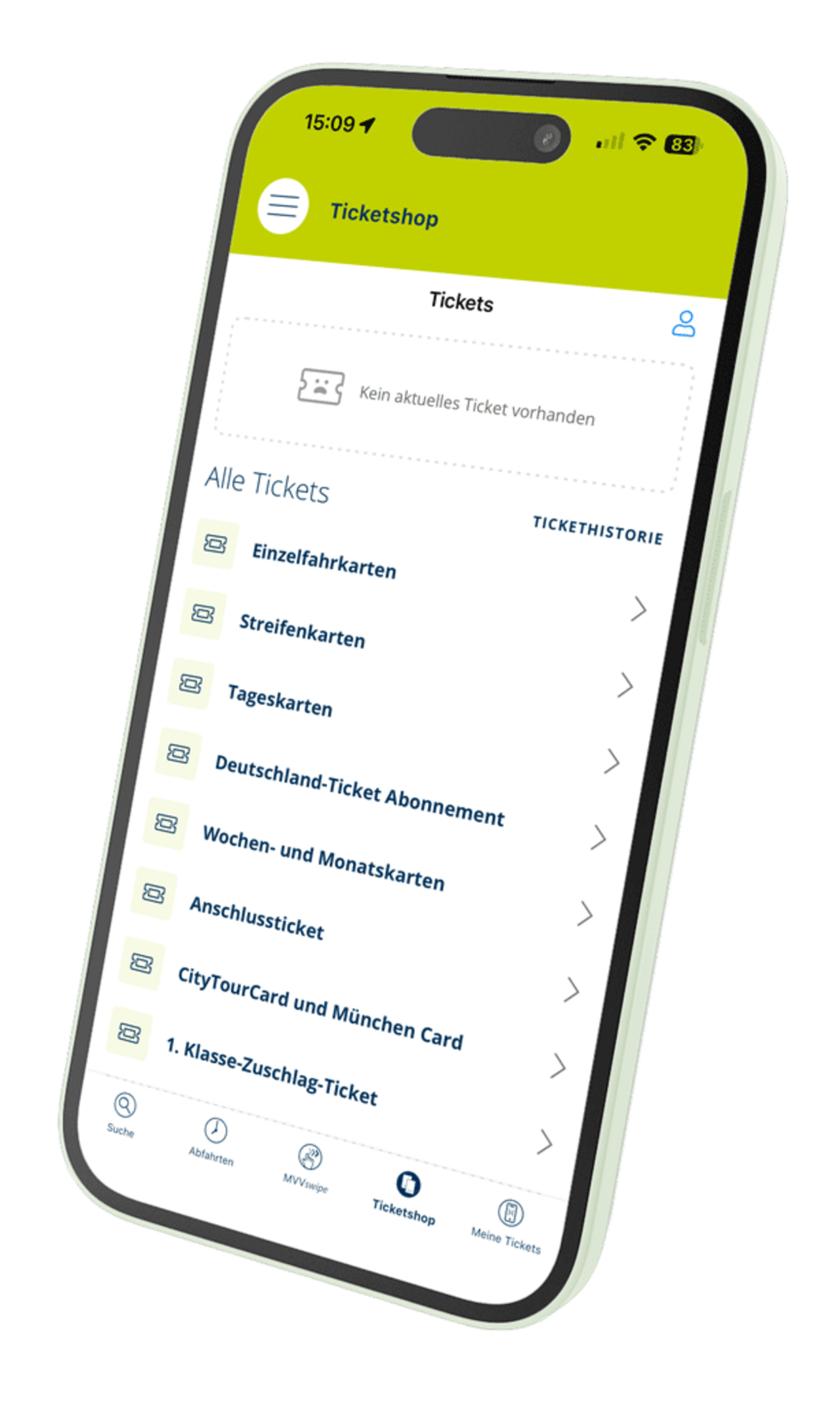
The MVV HandyTicket offers a mobile and cashless way to purchase tickets directly via the MVV app. Tickets are conveniently stored on your smartphone straight away.
The following are currently available as HandyTickets:
- MVVswipe
- Germany Ticket (subscription)
- Weekly and monthly tickets
- Single tickets
- Strip tickets
- Day tickets
- CityTourCard and Munich Card
- Connecting tickets for season tickets


MVV Mobile Ticket from our partners
As well as via the MVV app, the MVV HandyTicket can also be purchased via our transport association partners’ apps.
These include:
MVGO Munich Navigator DB Navigator BRB Tickets & Info
Here’s how it works
You register once in your preferred app and can then enjoy the benefits of the MVV HandyTicket.
Before starting your journey, simply select the ticket you want in the app and pay conveniently by credit card, direct debit or another available payment method. The ticket is stored in your customer account and can be presented at any time – even without mobile phone reception.
When your ticket is checked, show the MVV Mobile Ticket on your smartphone together with a valid official photo ID.
Buying a mobile ticket
To purchase a HandyTicket, you will need a smartphone with internet access and the free MVV app.
How to use the app:
- Register once to be able to use the full range of features in the ticket shop (you can also register just before your first purchase).
- In the app, select
a ticket directly from the list or
enter your start and destination via the timetable enquiry to receive a ticket recommendation. - Confirm payment.
- The ticket is then immediately available in the app, and the amount is automatically debited.
The following tickets are available as mobile tickets: single tickets, short-distance tickets, connecting tickets for season tickets, and all day tickets – including the CityTourCard, Munich Card, Airport-City Day Ticket and the day ticket for cyclists.
For registered customers, strip tickets, season tickets (weekly and monthly tickets) and the Deutschland-Ticket are also available.
The HandyTicket can be used on all smartphones and devices on which the MVV app can be installed.
The MVV app, which includes a built-in ticket shop, is available free of charge from:
- Google Play Store (Android)
- Apple App Store (iOS)
- Huawei App Gallery
This means the HandyTicket can be used on a wide range of modern mobile devices.
You can register for the HandyTicket on the MVV website or directly in the MVV app.
To register in the MVV Ticket Shop, enter:
- Name
- Date of birth
- Address
- Email address
- Password
Once you have registered, a shared customer account will be available, which can be used for both the OnlineTicket and the HandyTicket.
Yes, you can make a purchase without registering if you pay by credit card, Apple Pay, Google Pay or PayPal.
However, the following are not available without registration:
- Sticker cards
- Season tickets (weekly and monthly tickets)
These ticket types still require you to register with the MVV Ticket Shop.
Yes, a HandyTicket can be purchased for other passengers travelling with you – with the exception of the Deutschland-Ticket.
The following details are required for the purchase:
- Name of the other person
- Date of birth of the other person
In the event of a ticket inspection, the ticket holder must be able to present the ticket and a valid form of photo ID.
Important:
- Deutschland-Tickets can only be purchased for your own account.
- Tickets cannot be transferred to other devices; furthermore, the number of possible transfers is limited for security reasons.
- If the person in question is not travelling with you, the ticket must be purchased on the other person’s own device.
- Screenshots are not considered valid tickets.
When purchasing a ticket, you can specify a different person as the ticket holder.
Here’s how it works:
- In the ticket configuration (e.g. validity area, duration), click on the ‘Me’ option.
- Use the plus icon to add the other person’s details (name, date of birth).
- For future purchases, the saved person can simply be selected from the list and designated as the ticket holder.
Important:
- Germany Tickets can only be purchased for the account holder.
People under the age of 18 cannot create their own account on the MVV Ticket Shop. However, they can still purchase HandyTickets by using an existing adult account.
Here’s how it works:
- The child can use the MVV app on their own smartphone.
- They log in using the adult’s account details (e.g. a parent’s).
- Tickets are purchased using the adult’s stored payment method.
Important:
- Before making a purchase, the ticket holder must be changed, as the default setting ‘Me’ always refers to the account holder.
Changing the ticket holder – step by step:
- Select the desired ticket.
- The ticket holder ‘Me’ appears at the bottom → click on it.
- Use the plus icon to enter the child’s details (name, date of birth).
- Select the ticket holder and continue with the purchase.
With a group ticket, only one person needs to be registered as the ticket holder.
This person must always be part of the group and must present the ticket in the event of a ticket inspection.
No names need to be entered for up to four other passengers. They may travel without providing any personal details.
No, a purchased HandyTicket is always linked to a specific device and cannot be freely transferred to other devices.
Exceptions:
In special circumstances – such as when a device is being repaired or replaced – a one-off authorisation for transfer may be granted. The number of such transfers is limited for security reasons.
In such cases, please contact the MVV Customer Service Centre: kundendialog@mvv-muenchen.de
Whether you can buy HandyTickets in advance depends on the type of ticket:
- Day tickets and season tickets can be purchased up to 7 days in advance.
- Single tickets and multi-journey tickets are only available for immediate travel; the start of validity cannot be changed.
- The Deutschland-Ticket can be purchased up to 30 days in advance.
The HandyTicket must always be purchased and fully downloaded before the journey begins – that is, before boarding a bus, tram or train, or before passing through a platform barrier.
Only a fully downloaded ticket is considered a valid travel document.
Payment, receipt and price
The following payment methods are available for purchasing mobile tickets:
- Credit card (Visa, MasterCard, American Express)
- Apple Pay
- Google Pay
- PayPal
Registered customers can also use the SEPA Direct Debit scheme (bank account within the EU).
The payment methods available for the Deutschland-Ticket subscription can be viewed under the menu item “Deutschland-Ticket subscription”.
There are three ways to change your payment details:
- Whilst placing an order in the app
When completing a ticket purchase, you can select or add a new payment method. - In the app outside of a purchase
- Open the “Tickets” menu item in the app.
- Log in if necessary.
- Tap the person icon in the top right-hand corner.
- There you can manage and change your saved payment methods.
- In the online shop outside of an order process
- Go to www.mvv-muenchen.de/ticketshop.
- Log in using your usual login details.
- Select ‘Manage payment methods’ from the menu on the left and make the desired changes.
The payment is processed by LogPay Financial Services GmbH, as it is a German specialist financial services provider commissioned by MVV GmbH to handle all payment processing for HandyTickets and OnlineTickets.
LogPay is responsible for, amongst other things:
- the technical processing of payments
- debiting the selected payment method
- the processing of chargebacks, payment failures and dunning procedures
This ensures a secure, reliable and standardised payment process for all ticket purchases.
The SEPA Direct Debit scheme requires identity verification to prevent anyone from using someone else’s or falsified bank details. This safeguard ensures that a SEPA mandate is set up only by the actual account holder.
Verification is carried out once via the secure Bank Ident procedure. This is provided by the identity service Verimi and uses your own online banking to confirm the authenticity of your bank details. Your online banking login details are required for this.
The SEPA Direct Debit scheme can only be used once identification has been successfully completed.
If verification is not possible, credit card, Apple Pay, Google Pay or PayPal remain available as alternative payment methods.
Questions or problems with the verification process?
The payment service provider’s customer service team is available to assist you directly:
LogPay Financial Services GmbH
Customer Care & Services
Telephone: 06196 8012 702
Email: mobility@logpay.de
Debits for Mobile Tickets do not always appear on your account on the same day as the purchase.
The payment process works as follows:
- The debit is initiated on the next banking day.
- Multiple ticket purchases may be combined into a single debit.
- Depending on your bank, the debit may appear with a delay, often several days later.
- Weekends and public holidays can further delay the display.
This is why a debit may appear on days when you haven’t actually bought a ticket yourself – it relates to earlier purchases that have been grouped together or debited at a later date.
When you add a credit card for the first time, the card is automatically verified to ensure that it is valid and can be used correctly.
Here’s what happens:
- A sum of €1 is requested from and authorised by your credit card provider.
- This authorisation is for technical verification purposes only – it confirms that the card exists and is in working order.
- The amount is not debited.
- The authorisation expires automatically, usually within two weeks, depending on the bank.
A 1-euro hold will therefore appear on your account for a short time. It will disappear automatically and will not be debited.
1. Receipt via the customer account in the online shop
The following functions are available in the ticket shop at ticketshop.mvv-muenchen.de/index.php/personal_data/orderList:
- View all purchased mobile and online tickets
- Download of individual receipts
- Generation of collective receipts for multiple orders
2. Receipt directly via the MVV app
In the MVV app, a receipt can be requested in two ways:
a) When the ticket is open:
- Select the receipt button
- Open the receipt directly or have it sent via an email link
b) Via the ticket list (“Tickets” or “History”):
- Press and hold the ticket
- View receipt or request email link
3. Receipt for ticket purchases without registration
When purchasing a ticket without registration, the receipt is available exclusively in the MVV app.
Prices are the same as at other sales outlets
HandyTickets cost exactly the same as tickets sold at ticket machines, ticket offices, newsagents or on MVV regional buses. There are no additional surcharges and no discounts.
Why aren’t HandyTickets cheaper?
The introduction and operation of HandyTickets and OnlineTickets incur significant investment and operating costs.
If these tickets were offered at a lower price, this would lead to a reduction in fare revenue.
The resulting losses would then have to be financed through general price adjustments, which would affect all passengers.
Checking your mobile ticket
- During a ticket inspection, you must present the mobile ticket in the app together with a valid form of official photo ID.
- The ticket inspector scans the ticket’s barcode with a ticket validator and automatically checks its validity.
- The HandyTicket is linked to the device used and can only be displayed on that device.
- Screenshots or displays in wallet apps are not accepted, as they do not constitute a valid electronic ticket.
- If neither a valid HandyTicket nor photo ID can be presented, this is considered travel without a valid ticket and will result in the imposition of a higher fare.
Under the fare regulations, you must have a valid and presentable HandyTicket when boarding the vehicle or entering the area where a ticket is required.
If the ticket cannot be presented during a ticket inspection – for example, due to a flat battery, a faulty device or technical problems – this is initially considered travel without a valid ticket and will result in the imposition of a higher fare.
However, if the valid HandyTicket is subsequently provided as proof – i.e. it was already in possession at the start of the journey – the increased fare may be reduced to the reduced rate. This is subject to the condition that the ticket was in fact valid and could simply not be presented at the time of the inspection.
No. Once purchased, the HandyTicket is stored in the MVV app and can be accessed at any time under ‘Current Tickets’ – even without a mobile signal.
A mobile connection is only required for:
- logging in to the ticket shop
- purchasing a HandyTicket
No network connection is required to present the ticket during a ticket inspection.
The strip ticket
When purchasing a digital strip ticket, you must select the number of strips required for your immediate journey.
- A ticket book cannot be purchased in advance without being validated.
- A ticket with 10 strips is automatically purchased at the time of purchase.
- The number of strips selected during the purchase process is validated immediately and applies directly to the upcoming journey.
- Any unused strips are stored as credit in your account and can be used for future journeys.
The selection is limited to a maximum of 8 strips, as a maximum of 8 strips are required for a single journey on the MVV network. Two strips will then always remain as a remaining credit, which can be used flexibly for further journeys.
1. Using the ticket shop
- In the ‘Tickets / Credit / History’ menu, select ‘Credit’.
- Select “Magnetic card”.
- Set the necessary settings for your next use.
- You can also view your current balance in the same place.
2. Using the MVV app
- Use via the timetable enquiry function when a ticket is selected there.
- Or via “Buy ticket” → “Streifenkarte”, whereby the existing credit is automatically taken into account.
Yes. The prepaid card balance can be used on different devices, provided the same account is used on all of them.
However, it is important to note:
- The validation of the strips is always linked to the device on which it was carried out.
- In the event of a ticket inspection, you must therefore present that specific device.
- Validating tickets for other people on your own device is only possible if you are travelling together, as the validated journey must be shown on the relevant device.
- When the ticket is validated, the accompanying passenger is registered as the ticket holder, along with their name and date of birth.
- To do this, select the “Me” option in the ticket configuration (validity area, duration, etc.).
- You can add a new person using the plus icon.
- People already saved can be easily selected for future journeys and added as ticket holders.
- During a ticket inspection, the ticket holder and photo ID must match.
Important note regarding device binding
- Purchased tickets cannot be transferred to other devices.
- If the journey is not being made together, the ticket must be purchased and displayed on the other person’s device.
- Screenshots are not recognised as valid tickets.
If the balance on your card is insufficient to validate the number of strips required for the journey, the following happens automatically:
- Any remaining strips will be deducted in full.
- A new strip card with 10 strips will be offered.
- The confirmation page shows whether the journey is being paid for entirely from your credit balance or whether you also need to purchase a new ticket.
The combination is therefore carried out automatically during the purchase process, without the need for any further steps.
With the digital multi-trip ticket, any remaining credit does not expire.
Multi-trips that have already been purchased but not yet validated can continue to be used indefinitely – even after a fare increase.
The Germany Ticket (subscription)
You can cancel your subscription at any time by the 10th of the month, with effect from the end of that month.
Cancellation via the MVV app (recommended)
- Open the “Ticketshop” tab in the MVV app.
- Select the profile icon in the top right-hand corner.
- Under “Subscriptions”, select the relevant subscription.
- Click the relevant button to cancel.
Cancellation via the personalised link
When you purchased the Deutschland-Ticket, two emails were sent:
- A confirmation of the ticket purchase
- A confirmation of the subscription
The second email contains a personalised cancellation link that can be used to cancel the subscription directly.
The same link is also included in every monthly notification regarding the provision of the ticket for the following month.
The Deutschland-Ticket is available exclusively as a monthly subscription that can be cancelled at any time. To take out a subscription, you need an account with the MVV Ticket Shop.
Step-by-step ordering
- Create an account or log
in Register with the MVV Ticket Shop or log in with an existing account. - Select
the Deutschland-Ticket Select the Deutschland-Ticket as a product in the MVV app or in the online shop. - Complete
subscription Select a payment method and confirm the subscription. - Ticket availability
The first ticket is made available in the MVV Ticket Shop immediately after purchase and can be accessed directly in the MVV app. - Term
The subscription contract is open-ended and can be cancelled on a monthly basis.
No.
Deutschland-Tickets can only be purchased for the account holder in question.
If a Deutschland-Ticket is required for another person, a separate account must be created in the MVV Ticket Shop.
There are no fixed booking deadlines in the MVV Ticket Shop.
The Deutschland-Ticket can also be purchased during the current month – right up until a few days before the end of the month.
Once purchased, the ticket is immediately available in the MVV app.
Important to note:
The Deutschland-Ticket is a subscription model that can be cancelled by the 10th of the month to take effect at the end of that month. Any cancellation made after this date will only take effect at the end of the following month.
Yes.
With the Deutschland-Ticket, you can choose to start your subscription either in the current month or the following month.
The desired start date is specified when you take out the subscription in the MVV Ticket Shop.
Yes, that is possible.
The Deutschland-Ticket can be used for just one month. To do so, the subscription must be cancelled in good time:
- Purchases for a single month can be made in the previous month or up to and including the 10th of the current month.
- If the ticket is only to be used for that one month, the subscription must be cancelled by the 10th of the month.
- If cancellation takes place later, the subscription is automatically extended by a further month.
The Deutschland-Ticket is always a subscription that can be cancelled on a monthly basis.
Cancellation must be made by the 10th of the month at the latest for the subscription to end at the end of that month.
If the ticket is purchased after the 10th of the month for the current month, cancellation is no longer possible for that month.
For this reason, the ticket for the following month is automatically issued.
The payment relates to the Deutschland-Ticket for the coming month.
The monthly payment is always due when the new ticket becomes available in the app – usually between the middle and the end of the previous month.
This means that
even if the ticket for the current month has already been paid for, the next payment will be taken automatically as soon as the following ticket is made available. You will also be notified of this by email.
Once you have purchased the Deutschland-Ticket for the first time, each subsequent monthly ticket will be automatically made available in the MVV app before the start of the new month.
You will also receive an email confirmation each time a ticket is made available automatically.
If the Deutschland-Ticket does not appear in the MVV app, the following steps will often help:
- Open the “Ticketshop” menu item.
- Select the profile icon in the top right-hand corner.
- Log out and then log back in.
You should also check that you have the latest version of the MVV app installed.
Note for Android users
On Android devices, only currently valid tickets are displayed in the “My Tickets” section.
Until it becomes valid, the ticket for the following month is only available under the “Ticket Shop” menu item.
- It will appear there automatically as soon as it is made available (from the middle/end of the previous month).
- Once the ticket becomes valid, it will then automatically appear under “My Tickets” as well.
At present, the only payment method available for purchasing the Deutschland-Ticket is by credit card.
For security reasons, the SEPA Direct Debit scheme cannot currently be used for new subscriptions.
The monthly payment is always debited automatically from the payment method provided when the subscription was taken out.
The payment for the first month’s travel pass is due immediately after the subscription is taken out.
Payments for subsequent months are debited automatically as soon as the new Deutschland-Ticket becomes available in the MVV app. This usually happens between the middle and the end of the previous month.
The monthly payment is always debited from the payment method provided at the time of subscription.
The procedure for changing your payment method varies depending on your operating system:
iPhone (iOS):
In the MVV app:
- Open the ‘Ticketshop’ tab.
- Select the profile icon in the top right-hand corner.
- Under “Subscriptions”, select the relevant subscription.
- Tap on the stored payment method and select or add the new payment method
Please note that, for fraud prevention reasons, only credit cards can currently be added. The change applies immediately to all outstanding and future payments. You must be using the latest version of the MVV app.
Android:
It is not possible to change the payment method for a current Deutschland-Ticket subscription.
To change the payment method, the existing subscription must be cancelled at the earliest possible date and a new subscription with the desired payment details must then be taken out.
How to cancel your current subscription
In the MVV app:
- Open the “Ticketshop” tab.
- Select the profile icon in the top right-hand corner.
- Under “Subscriptions”, select the relevant subscription.
- Cancel the subscription using the relevant button.
Via the personalised cancellation link:
This can be found in the email “Confirmation of the conclusion of a Deutschland-Ticket subscription incl. cancellation link” as well as in every monthly email regarding ticket provision.
Important deadline
Cancellation must be made by the 10th of the month at the latest for the subscription to end at the end of the month.
After the 10th, cancellation will only take effect at the end of the following month.
Note on payment by credit card
If an expired credit card is on file for a current subscription, two attempts will be made to debit the card.
If both attempts are unsuccessful, the subscription will be automatically cancelled at the end of the month.
A confirmation will be sent by email.
A new subscription can then be ordered using a valid credit card (starting the following month).
Yes.
The Deutschland-Ticket is the most flexible and attractive option in the MVV network and allows for nationwide travel on all local and regional transport services.
Compared to the cheapest standard MVV monthly travelcard on a subscription basis (Zone M), which has a minimum contract term of three months, the monthly price difference for the Deutschland-Ticket is just a few euros. In return, it offers significant added value:
- Use throughout the entire MVV network
- Use across the whole of Germany on local and regional transport
- Can be cancelled monthly, no minimum contract term
- Easy digital access via the app
The Deutschland-Ticket therefore offers considerably greater coverage, flexibility and freedom of use for a small additional cost.
First of all, you should check whether the issue is already covered in the FAQs. Many common questions about app features, the ticket shop or technical processes are answered there.
If no solution is found, you can contact MVV Customer Services by email: kundendialog@mvv-muenchen.de
To ensure your enquiry is dealt with quickly, please provide the following information:
- as detailed a description of the problem as possible
- the device and operating system used
- Steps that led to the error
- Screenshots, if available
- if relevant: customer number, order number or time the error occurred
The Deutschland-Ticket cannot be transferred to other apps.
It can only be used in the MVV app. It cannot be used or transferred to apps from other providers – such as DB Navigator, MVGO or apps from other transport operators.
Further general information about the Deutschland-Ticket can be found on the following page:
Season tickets
The following season tickets can be purchased as mobile tickets in the MVV app:
- Weekly pass
- Monthly pass
- Monthly ticket (9 am)
- Monthly ticket (65+)
Weekly ticket
The weekly ticket is valid
- for seven consecutive days,
- and additionally beyond the last day of validity until 12 noon the following day.
Example:
Purchased on Wednesday → valid until 12:00 on Wednesday of the following week.
Monthly ticket
The monthly ticket is valid
- for a full month,
- and beyond the last day of validity until 12 noon the following day.
Example:
Purchased on the 11th of a month → valid until 12:00 on the 11th of the following month.
Yes.
Weekly and monthly tickets can be purchased as mobile tickets up to seven days in advance.
When purchasing,
- the first day of validity and
- the desired area
of validity.
If the ticket is purchased via the journey planner, the required area of validity is automatically applied.
Digital weekly and monthly tickets are personalised season tickets. They may only be used by the person named on the ticket. It is therefore essential to provide the ticket holder’s details at the time of purchase.
This rule is clearly defined in the MVV documentation: weekly and monthly tickets are valid for a specific person and are not freely transferable.
However, it is possible to transfer them to another device:
weekly and monthly tickets in the form of a HandyTicket can be transferred to another mobile device up to twice, as also provided for in the internal support information.
The following rules apply to weekly and monthly tickets, the 9 am monthly ticket, the Job monthly ticket and the S monthly ticket:
- Children aged 6 to 14 may travel free of charge from 9 am on Mondays to Fridays,
and at all other times. - A maximum of three children may travel free of charge –
or an unlimited number of your own children or grandchildren. - The names of the accompanying children do not need to be provided at the time of purchase.
The ticket can be transferred to a new device.
To do this, go to the ticket shop in the MVV app:
- Open the relevant ticket
- Select “Transfer”
Please note:
For security reasons, the number of possible transfers is limited to two device changes.
A HandyTicket can only ever be used on one device at a time.
For security reasons, it can only be transferred to other devices twice.
If an error message appears during the transfer, this limit has been reached.
A further transfer is then only possible in justified exceptional cases and requires manual verification by customer service.
In this case, please send a brief message to: kundendialog@mvv-muenchen.de
HandyTickets cannot be exchanged, returned or cancelled under any circumstances.
This also applies to weekly and monthly tickets.
A full or partial refund for these season tickets is therefore not possible.
No.
Weekly and monthly tickets cannot be purchased as printable OnlineTickets.
These tickets are available exclusively as HandyTickets via the MVV app.
No.
A TicketAbo cannot currently be used as a mobile ticket via the MVV app. Season tickets are issued exclusively as chip cards or – depending on the sales partner – via other apps, but not via the MVV app. This feature is planned for the future.
Potential technical issues when using mobile tickets
Please first check in the App Store to see if you already have the latest version of the MVV app installed.
If the error message continues to appear, please proceed as follows:
- Open the “Ticket Shop” menu item in the MVV app.
- Tap the person icon in the top right-hand corner.
- Log out and then log back in.
If the problem persists, please uninstall the app completely and reinstall it via the relevant App Store.
To resolve this issue, you will need the latest version of the MVV app.
Please check the App Store first to see if an update is available and install it if necessary.
If the error message continues to appear despite having the latest app version, the following steps may help – depending on your operating system:
iOS (Apple)
Completely uninstall the MVV app (remove or delete the app) and then reinstall the latest version via the App Store.
Android
Open your device’s settings (not the settings in the MVV app).
Select Apps → MVV app → Storage → Clear data.
You should then be able to log in again.
If you have any further questions, our customer support team will be happy to assist you.
In this case, the ticket list has not loaded completely. As a result, some tickets may occasionally appear as ‘unavailable’.
Here’s what to do:
- Open the Tickets section in the MVV app.
- Select Buy ticket.
- Refresh the list by swiping down on the page and holding until it has reloaded.
If the problem persists:
- Uninstall the MVV app completely.
- Then reinstall the app via the App Store.
(Your ticket details and credit balance will be retained.)
Within the MVV network, there are several apps and online ticket shops where you can buy mobile tickets. Your login details are only valid for the ticket shop where you originally registered.
Until now, two different ticket shops have been available via the MVV app:
- the MVV ticket shop and
- the S-Bahn Munich ticket shop.
If you are now unable to log in to the MVV app, you are most likely registered with the S-Bahn ticket shop. In future, this will only be available in the “München Navigator” app.
Please download the “München Navigator” app from the App Store or Play Store and log in there using your existing login details.
There, you can continue to use your previously purchased tickets and any remaining credit on your multi-trip card as usual.
It is likely that a faulty version of the MVV app was being used prior to the last update. This may be causing this error message.
Please proceed as follows:
- Completely uninstall the MVV app from your device.
- Reinstall the app from the App Store or Play Store.
Afterwards, newly purchased tickets will be displayed directly as usual.
If you still have a currently valid ticket, please contact Customer Support immediately after reinstalling the app at kundendialog@mvv-muenchen.de so that a one-off manual transfer can be arranged.
For security reasons, tickets can only be displayed on the device on which they were purchased. Furthermore, the number of times a ticket can be transferred between different devices is limited.
In exceptional cases, however, a one-off manual transfer is possible.
Please contact Customer Support at kundendialog@mvv-muenchen.de. They will check whether it is possible to transfer your ticket.
In most cases, the order process being interrupted is due to your credit card’s security procedure (e.g. Visa Secure or Mastercard Identity Check).
This procedure is designed to provide additional security for online payments.
If necessary, please contact your bank to check whether your credit card is already registered for the enhanced security procedure or whether activation is required.
Account / Profile
There are two ways to update your personal details:
In the MVV app
- Open the ‘Tickets’ menu item.
- Log in, if necessary.
- Tap the person icon in the top right-hand corner.
- You can edit your personal details directly under Settings/Info.
In the customer portal
- Go to the page www.mvv-muenchen.de/ticketshop.
- Log in using your usual login details.
- Select the “Personal details” menu item on the left.
Your changes will then also be applied in the app.
Yes.
Simply tap the year in the top-left corner of the date picker.
This allows you to select the year of birth directly, without having to scroll through all the months. Then simply select the relevant month and day.
Yes.
You can log in to the MVV Ticket Shop using your login details on any device.
Please note, however:
- A ticket can only be displayed on the device on which it was originally purchased.
This is due to the device-specific security architecture of the MVV app. - The number of times a ticket can be transferred between different devices is limited.
This limit is in place to prevent misuse.
There are two ways to delete your customer account:
1. Deletion via the customer portal
Simply send your request to delete your account by email to kundendialog@mvv-muenchen.de.
The account will then be completely removed.
2. Self-deletion in the MVV app
You can also delete your account directly in the app:
- Open the menu.
- Go to Profile and Login Details.
- Select Change login details.
- In the top right-hand corner, you will find the option ‘Delete profile’.