
With the MVV Online Ticket, you can conveniently buy tickets on your computer and save them as a PDF or print them out. If you register, the ticket is automatically saved to your personal account. You can also purchase tickets without registering, provided you pay by credit card or PayPal.
The following tickets are available as MVV OnlineTickets:
- Day tickets
- CityTourCard
- Munich Card
Season tickets and multi-trip tickets cannot be purchased as OnlineTickets.
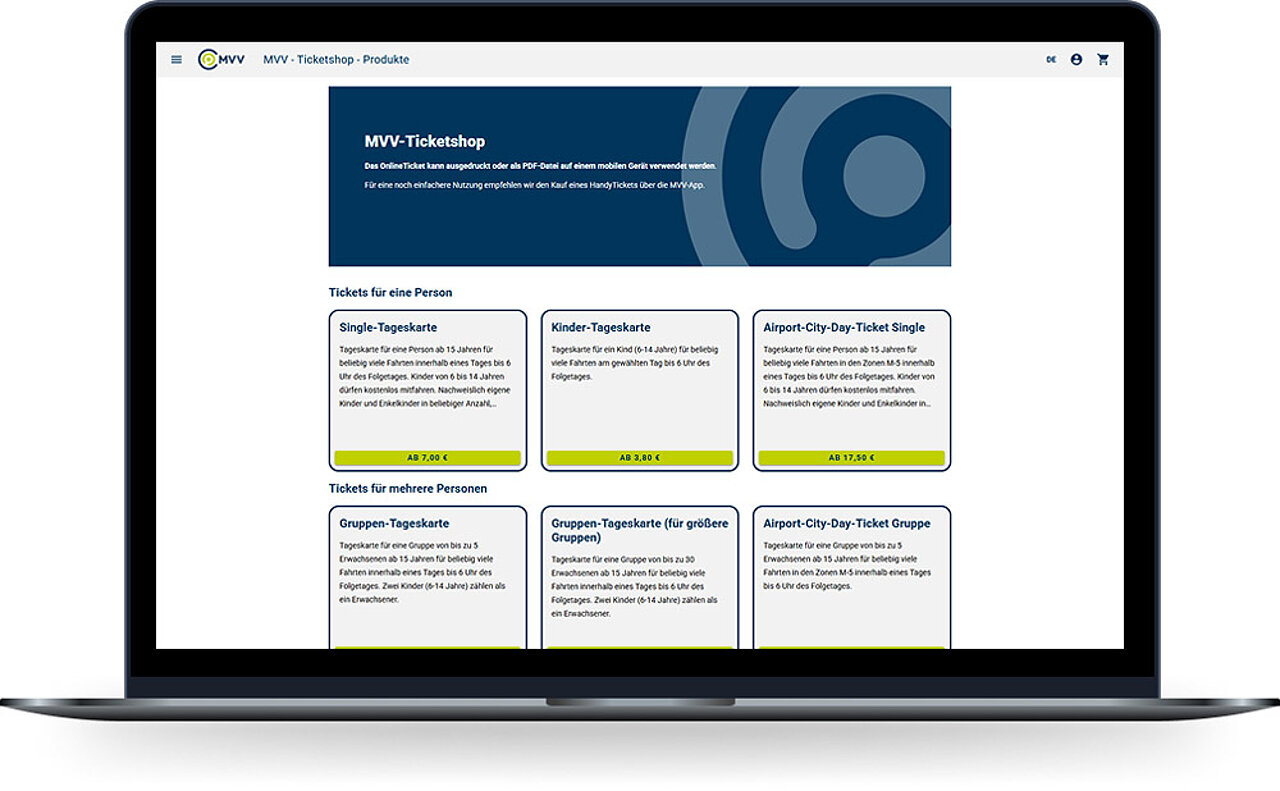
Buying an online ticket
The OnlineTicket is a digital ticket that can either be stored as a PDF on any mobile device or printed out on an A4 sheet of paper.
An OnlineTicket can be purchased directly via the MVV website – either via the ticket shop or via the timetable enquiry service, which suggests suitable tickets for your journey.
Procedure:
- Select the desired ticket in the ticket shop, configure it and add it to your basket.
- Complete the purchase by entering your personal details and payment method (possible with or without registration).
- Then download the ticket as a PDF – it is valid when printed on A4 paper or displayed digitally on a mobile device.
Day tickets are available as OnlineTickets, including:
- CityTourCard
- Munich Card
- AirportPLUS tickets
- Bicycle day ticket
- Oberland MVV ticket
Not available as an OnlineTicket:
single tickets, multi-trip tickets and season tickets.
You can register for the OnlineTicket directly in the ticket shop. To do so, you will need to enter your name, date of birth, address, email address and a password.
The customer account you create can be used for both the OnlineTicket and the HandyTicket.
Yes, that is possible.
An OnlineTicket can be purchased without registering if payment is made by credit card or PayPal.
No.
You only need to register once. Your existing customer account is valid for both the HandyTicket and the OnlineTicket.
For a group ticket, only one name is required.
This person is considered the ticket holder, must always travel with the group and must present the ticket if asked to do so.
No name is required for the other passengers (up to four).
Yes, that is possible.
When purchasing the ticket, the name and date of birth of the person in question are recorded.
During a ticket inspection, the ticket and – if requested – proof of identity for the person named must be presented.
The advance booking period is 30 days.
Online tickets can therefore be purchased up to 30 days before the desired date of use.
For larger groups, group day tickets can be purchased as OnlineTickets – for up to 30 people, in groups of five.
Important information:
- The rule that children up to the age of 14 and school pupils up to Year 9 count as half a person also applies to OnlineTickets.
- For visitor groups and school classes, the OnlineTicket offers a convenient way to order multiple group tickets directly via the internet.
- Group trips should be booked with the relevant transport operator at least three working days before the trip begins. Contact details can be found at the bottom right of the timetables.
Available group day tickets as OnlineTickets (up to 30 adults each):
Validity areas Part 1 – Start of validity: Zone M
Payment, receipt and price
The following payment methods are available for purchasing OnlineTickets:
- Credit card (Visa, MasterCard, American Express)
- PayPal
Registered customers can also use the SEPA Direct Debit scheme (bank account within the EU).
There are two ways to update your payment details:
In the online shop:
After logging in to the ticket shop, select the ‘Manage payment methods’ menu item and change the details there.
During an order:
New payment details can also be entered directly during the ordering process.
The payment is processed by LogPay Financial Services GmbH, as it is a German specialist financial services provider commissioned by MVV GmbH to handle all payment processing for HandyTickets and OnlineTickets.
LogPay is responsible for, amongst other things:
- the technical processing of payments
- debiting the selected payment method
- the processing of chargebacks, payment failures and dunning procedures
This ensures a secure, reliable and standardised payment process for all ticket purchases.
The SEPA Direct Debit scheme requires identity verification to prevent anyone from using someone else’s or falsified bank details. This safeguard ensures that a SEPA mandate is set up only by the actual account holder.
Verification is carried out once via the secure Bank-Ident procedure. This is provided by the identity service Verimi and uses your own online banking to confirm the authenticity of your bank details. Your online banking login details are required for this.
The SEPA Direct Debit scheme can only be used once identification has been successfully completed.
If verification is not possible, credit card, Apple Pay, Google Pay or PayPal remain available as alternative payment methods.
Questions or problems with the verification process?
The payment service provider’s customer service team is available to assist you directly:
LogPay Financial Services GmbH
Customer Care & Services
Telephone: 06196 8012 702
Email: mobility@logpay.de
Debits for Mobile Tickets do not always appear in your account on the same day as the purchase.
The payment process works as follows:
- The debit is initiated on the next banking day.
- Multiple ticket purchases may be combined into a single debit.
- Depending on your bank, the debit may appear with a delay, often several days later.
- Weekends and public holidays can further delay the display.
This is why a debit may appear on days when you haven’t actually bought a ticket yourself – it relates to earlier purchases that have been grouped together or debited at a later date.
When you add a credit card for the first time, the card is automatically verified to ensure that it is valid and can be used correctly.
Here’s what happens:
- A sum of €1 is requested from your credit card provider and authorised.
- This authorisation is for technical verification purposes only – it confirms that the card exists and is in working order.
- The amount is not debited.
- The authorisation expires automatically, usually within two weeks, depending on the bank.
A 1-euro hold will therefore appear on your account for a short time. It will disappear automatically and will not be debited.
In the ticket shop’s customer account, all mobile and online tickets purchased are clearly listed under the ‘My Orders’ menu item. There, you can generate and download individual or consolidated receipts yourself.
To do this, simply open the Ticketshop website, log in and select “My Orders” on the left.
Important:
If a ticket was purchased without registering, no receipt can be generated. Therefore, always purchase tickets with registration if you require a receipt.
The prices of OnlineTickets are the same as those at ticket machines, ticket offices, newsagents and on MVV regional buses. There are no additional charges, but there are also no discounts when buying online.
An additional discount for mobile or OnlineTickets would lead to lower fare revenue. The resulting loss of revenue would have to be offset by higher ticket prices for all MVV customers.
Checking the OnlineTicket
During ticket inspections, you must present your OnlineTicket – either as a paper copy or a digital PDF – along with a valid official photo ID (e.g. identity card, passport).
The ticket’s barcode is scanned using a ticket validator and checked automatically.
Important:
- You must be able to present both your ticket and your ID.
- If either is missing, an increased fare must be paid.
OnlineTickets are personalised tickets and therefore bear the ticket holder’s name.
To ensure that, in the event of a ticket inspection, it can be clearly established that the ticket belongs to the person presenting it, you must carry a valid official photo ID (e.g. identity card, passport) and present it on request.
Important:
If you are unable to present your ID during a ticket inspection, you will be required to pay a higher fare.
Yes, that is possible.
The OnlineTicket can be displayed as a digital PDF on mobile devices such as smartphones, tablets or laptops.
The only important thing is that the barcode is clearly visible so that it can be scanned by the ticket inspectors.
Potential technical issues when using OnlineTickets
Within the MVV network, there are several separate ticket shops and apps that do not use the same login details.
Registration for the HandyTicket does not automatically apply to the online shop.
Important to know:
- The MVV website provides access to various ticket shops, such as the
MVV Ticket Shop, the S-Bahn Ticket Shop and the BRB Ticket Shop. - Each of these shops has its own login details. This means that your login details only work in the shop where you originally registered.
- Before logging in, you should check that you have selected the correct shop.
- If you do not yet have access to the shop you wish to use, you will need to create a new customer account there.
In most cases, the error is caused by the browser settings.
This is often due to security settings that are set too high or automatic redirects being blocked.
Here’s how to usually fix the problem:
- Adjust the security level in your browser settings.
- Enable automatic redirects.
If the interruption is related to your credit card – for example, because you do not know the Secure Code or authentication has failed – your credit card issuer will be able to help.
Account / Profile
Personal details can be updated both in the ticket shop and during the ordering process.
Here’s how to make changes in the ticket shop:
- Open the ticket shop page and log in using your own login details.
- Select the ‘Personal details’ menu item in the left-hand navigation bar.
- Edit the relevant details there and save them.
There are two ways to delete your customer account:
1. Deletion by email
You can send a request to delete your account directly to kundendialog@mvv-muenchen.de.
2. Deletion via the ticket shop
- Select ‘Profile and login details’ from the menu.
- Go to “Change login details”.
- The “Delete profile” button is located at the top right.