
The MVV app is available for Android and Apple iOS.
For Android devices, Android versions with Google Services installed are recommended. Problems may arise when using so-called custom ROMs.
Older operating system versions may not be supported, or may no longer be fully supported. Where possible, older versions of the MVV app are also available in the app stores, but these do not offer the full range of features.
Less common operating systems such as Windows Phone are no longer supported for cost-benefit reasons. For devices that are not compatible, we recommend the mobile web-based information portal at www.mvv-auskunft.mobi.
The MVV app is available on the Google Play Store, the Apple App Store and the Huawei AppGallery.
For security and distribution reasons, the MVV app is not available for download outside these stores.
The MVV app uses various convenience features that require specific permissions depending on the operating system.
Location access enables connections from your current position and the display of nearby stops.
Access to contacts makes it easier to buy tickets for fellow passengers, as contact details are automatically populated into form fields.
Some platforms group permissions into categories. On Android, for example, access to “Photos, media and files” may be required to save map sections locally or to use memory cards. No personal data is transmitted or analysed in the process. User statistics are collected only anonymously and only if consent has been explicitly given in the settings.
For questions regarding data protection, please refer to the privacy policy for the MVV app. It is linked on the website, in the app stores and directly within the app.
The MVV app comprises two main sections: timetable information and the purchase of MVV mobile tickets.
Additional mobility information is also available to help you navigate the entire MVV network.
A detailed description of all functions can be found on the MVV app help page. If you have any further questions, MVV Customer Services is here to help.
All disruption reports provided by the relevant transport operators are published immediately in the MVV app. The notifications appear in the departure monitor, in the journey planner and, in summary form, in the notification overview.
In future, a service will also be available that automatically informs users of timetable changes (push notifications).
The scope and content of the reports cannot be influenced, as they are provided entirely by the transport operators.
For many years, MVV has been providing comprehensive passenger information for the entire network area – both in print and digitally via the MVV information service on the internet and the MVV app.
The app offers the advantage of a one-stop timetable service and benefits from a wealth of long-standing experience as well as continuous improvements based on daily customer feedback. As a result, its features are closely aligned with passengers’ actual needs.
The MVV app stands out for the following reasons:
- Simple, intuitive operation
- Comprehensive timetable information, including FLEX, FLEXlinie, car-sharing and bike-sharing
- Many customisation options, e.g. accessible routes
- Additional information such as service updates and network maps
- High device compatibility, including with older smartphones and tablets
- Free of charge and ad-free
Through partnerships with other transport associations and participation in research projects, MVV supports the development of common standards and integrates new passenger information options at an early stage.
The MVV app is currently available in German and English.
By default, the language displayed is based on the smartphone’s system settings. As soon as a system language other than German is selected, the app automatically switches to English.
Depending on the app version, a preferred language can be set in the app settings, regardless of the system language.
In the MVV app, you can save departure and destination points, connections and routes as favourites so that you can access frequently used information more quickly.
You can always add favourites via the history list or the route list. Depending on the app version, a favourite is saved using the star icon or the three-dot icon behind the relevant entry.
Favourites that are no longer needed can be removed at any time using the same method.
The quick access bar can be customised.
Press and hold (for a few seconds) on any icon to open the configuration dialogue. There, you can select various functions, place them on the bar and sort them in the order you wish.
A maximum of five icons can be placed on the ribbon.
Under ‘My Settings’ (in some app versions: ‘Settings’), you can customise a range of options to personalise your connection search.
Examples of customisable criteria include:
- Short walking routes
- Walking routes without stairs
- Further personal preferences for route calculation
All changes are saved automatically.
Tip: You can open the settings directly via the cog icon in the journey information or on the departure monitor – without having to go via the main menu.
The MVV app can also be used without location services enabled.
However, without location sharing, some features are not fully available. These include, amongst others:
- No connections from your current location
- No search for nearby stops
All other features can still be used as normal.
Your current location can be viewed on the interactive map (compass icon) or used directly as a starting point or destination in the route search. Depending on the app version, this is done by selecting ‘Current location’ or by tapping the compass icon in the relevant input field.
This requires that the smartphone’s location services are enabled and that the MVV app has been granted location permission.
The accuracy of the location determination depends on the specific location and the smartphone’s technology. Precise GPS positioning is only possible outdoors, not underground.
The latest version of the MVV app features a new function: the starting point is automatically set to your current location. This is handy if you often look for a connection directly from your current location whilst out and about.
However, if the app is mainly used for planning journeys in advance, this automatic pre-selection can be impractical. That is why there is an option in the settings to specify:
- whether the starting point should
always be entered manually or - whether your current location should be used automatically as the starting point.
Once the desired setting has been selected, entering the starting point works as usual again.
The search for start and destination locations takes several factors into account, including possible typos. The aim is to display the most likely match after just a few letters have been entered – including common abbreviations.
In rare cases, however, you may still need to type out a stop or address in full for the desired suggestion to appear.
The favourites function offers an additional convenience, allowing you to select important locations more quickly.
The MVV app does not display all theoretically possible routes in order to keep things clear. Instead, it usually identifies the quickest route. If this involves several changes, a more convenient alternative with fewer changes is usually offered as well – even if it takes a little longer.
In the background, the app takes into account numerous other parameters that influence the result.
The connection search can be customised via the “Settings” menu item. Here, you can set personal preferences, which are automatically saved. Any changes to the settings are clearly indicated in the connection information.
As soon as real-time information becomes available, the MVV app displays additional time details, which are colour-coded depending on punctuality:
- Green = expected to be on time
- Red = expected to be delayed
- No colour = no real-time data available
In the standard view, minutes of delay are shown after the departure and arrival times. Example:
15:35 +2 means an expected departure at 15:37.
Service cancellations can also be communicated via live data.
The format of the real-time data can be customised via the settings. The ‘Forecast time with crossed-out scheduled time’ option displays the new departure/arrival time directly. This display is clearer for longer delays, whilst the minute display allows for quicker ‘at a glance’ recognition of minor deviations.
Note:
Transport operators endeavour to provide complete and accurate live data. However, forecasts may occasionally be inaccurate, e.g. due to:
- traffic conditions that particularly affect bus journey times
- temporary transmission problems (e.g. dead spots)
- Vehicles without the technical equipment for live data
Therefore, real-time information is not available for all journeys. Furthermore, older app versions may no longer be able to display live data.
The MVV app receives its real-time data via DEFAS, the Bavaria-wide timetable data hub. The transport operators and networks connected to DEFAS provide the live data and endeavour to ensure that the information is as accurate and up-to-date as possible. Nevertheless, live times are always snapshots that can only provide an approximate reflection of reality.
Several factors can cause discrepancies:
- Unpredictable traffic conditions: Traffic jams or other disruptions particularly affect bus journey times. Delays may therefore increase or decrease at any time.
- Operational issues: Examples such as trams being held at stops make accurate forecasts impossible.
- Technical limitations: Problems with data transmission, dead spots or the use of replacement vehicles can affect the transmission of live times.
- Lack of equipment: Not all vehicles are technically capable of transmitting live data.
Live times are therefore only ever intended as a guide.
Where relevant information is available, timetable deviations are supplemented by text messages to make the extent and impact clearer.
On-demand services such as FLEX and FLEXlinie only operate when required. To ensure a journey takes place, it must be booked in advance. If a suitable journey option is displayed in the route search (taking into account the advance booking times), the ‘Register for a ride’ or ‘Book’ button will appear in the journey details.
The booking process:
- Select the “Register for a ride”/“Book” button
- Specify the number of passengers and, if applicable, space requirements
- The system checks the details and the availability of free seats
- If the check is successful, you will be asked to confirm
- Once the booking is successful, it will appear under “My bookings”
To use the booking function, you must first register for an MVV ID. You can do this in the main menu under “Profile and login details”.
Note:
The MVV app uses two separate user accounts – one for on-demand bookings and another for purchasing HandyTickets in the ticket shop.
Further information on FLEX and FLEXlinie is available online.
For a FLEXline service, the timetable shows all the locations that can in principle be served. The times listed there are approximate and based on average journey times. However, as FLEXline services only run on demand, the bus will only stop at those stops that have actually been booked.
This means that journey times may vary:
- Lower demand: Unnecessary stops are skipped – the journey becomes shorter.
- Higher demand: numerous passengers getting on and off extend the journey – the journey takes longer than the original estimate.
With FLEX, the process is even more flexible, as there are no fixed indicative timetables. This allows the service to respond very quickly to bookings, but:
- last-minute additional bookings
- different pick-up points
- fluctuating demand
may delay actual departure and arrival times by a few minutes.
Passenger information:
All booked passengers will be informed of any changes by email shortly before departure. The current times can also be viewed at any time in the app under ‘My Bookings’.
Further information on FLEX and FLEXlinie is available online.
The account used to book on-demand services (MVV ID) can be deleted directly in the MVV app.
How to do this within the app:
- Open “Profile and login details”
- Select the “MVV ID” section
- Tap “Change login details”
- Select the “Delete account” tab
Deletion is only possible after logging in and entering your password.
Important:
This step will delete your entire MVV ID. As a result, you will no longer be able to use any associated services – e.g. MVVswipe.
If you used the MVV-App before October 2026, you may be familiar with its two user accounts:
- The MVV-ID. You can already use it for various MVV-App services, including MVVswipe, On-Demand Services, MyRadl and seat reservations on the BergBus.
- The Ticketshop-ID. Until now, you need a separate account to purchase OnlineTickets and MobileTickets because the ticket shop system was not compatible with the MVV-ID.
Two user accounts in one app make things unnecessarily complicated. That's why we're changing our system: From around the end of October, you will only need the MVV-ID. The Ticketshop-ID will be discontinued; you will use your MVV-ID to purchase OnlineTickets and MobileTickets instead.
What do you need to know?
It depends on how you use the MVV-App:
- You're not interested in OnlineTickets or MobileTickets, have never bought any, or your last purchase was more than two years ago? Then you don't need to do anything.
- You have an active Ticketshop-ID? When we switch systems, your Ticketshop-ID, including any active tickets, will automatically be linked to your MVV-ID. All you need to do is make sure that you have an MVV-ID and use the same email address for both accounts. The FAQ below explain how to create an MVV-ID or change the email address linked to your Ticketshop-ID if necessary.
When will the system change take place?
The change is planned for the end of October. In the online ticketshop, it will take effect immediately. From then on, you will only be able to sign in with your MVV-ID. In the MVV-App, the change will take effect with the next app update. It may take some time for the update to reach all devices. Once it has been installed on your device, a pop-up will inform you about the change when you open the app. From then on, you will only be able to sign in with your MVV-ID.
I still have questions!
You'll find answers to many questions below. If you can't find what you're looking for, the MVV Customer Service team will be happy to help.
The MVV-ID is the central account for many digital MVV services.
The MVV-ID has already been used for some time to access MVVswipe, book on-demand-services (such as FLEX and FLEXlinie), rent MyRadl bikes, and reserve seats on the BergBus.
Starting in late October 2026 (expected), the MVV-ID can also be used to purchase OnlineTickets and MobileTickets in the MVV-Ticketshop. At that point, the MVV-ID will become your single, central user account for the MVV-App. The separate Ticketshop-ID previously required for mobile and online ticket purchases will no longer be needed.
Please note: If you have purchased MVV-MobileTickets or OnlineTickets before October 2026, you will need an MVV-ID in the future to continue purchasing tickets and to access tickets you have already purchased, if applicable. Whether you need to take any action and what the best approach is for your situation is explained in the following questions and answers.
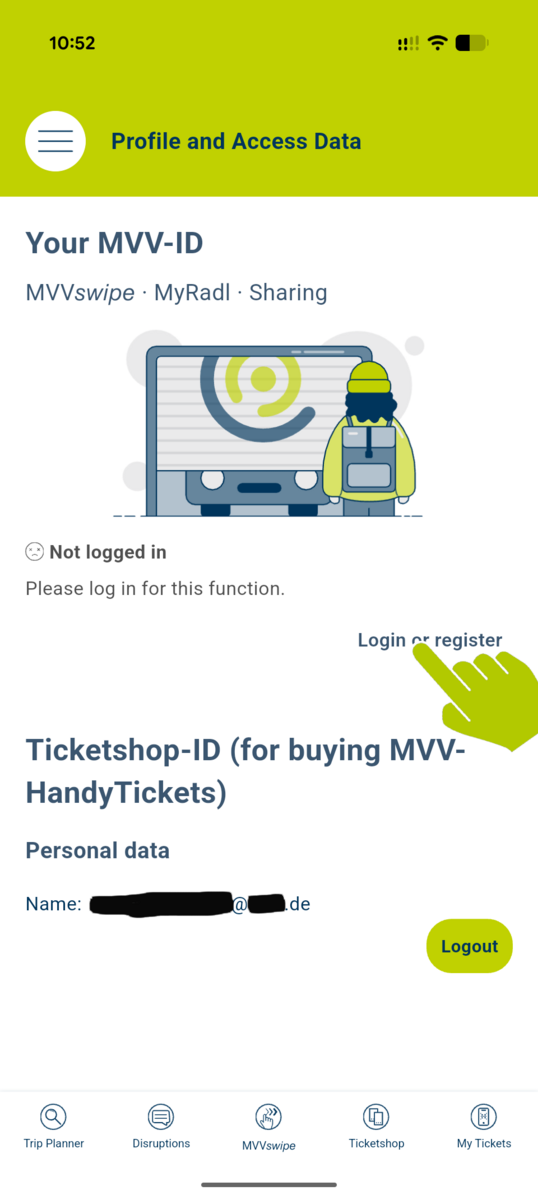
Creating an MVV-ID is free and only takes a few steps. The easiest way is to register in the MVV-App:
- Open the main menu in the MVV-App (via the three horizontal lines in the top left corner) and select “Profile and Login Details”.
- In the “Your MVV-ID” section, tap “Log In or Register”.
- In the window that opens, enter the email address you would like to use for your MVV-ID.
As an alternative to registration, you can also sign in with your Google or Apple account. However, for regular use, we recommend creating an MVV-ID. - The system will then check whether an MVV-ID is already associated with the email address provided. If one exists, you will be asked to enter your password.
- If no MVV-ID exists for that email address, the registration form will open. Enter your first name, last name, phone number, and choose a password.
- We will then send you an email to verify your email address. Click the link in that email to complete the registration process.
As you may have noticed, only a small amount of information is required during registration. With these basic details, you can already book on-demand services and reserve seats on the BergBus.
Additional information required for paid services, such as your address, date of birth, and payment details, is only requested when you first use MVVswipe, MyRadl, or the MVV-Ticketshop. In line with the principle of data minimization, these details are collected only when necessary. Of course, you can also complete your profile at any time in the “Profile and Login Details” section.
No MVV-App? Alternatively, you can create an MVV-ID in your browser via the MVV Journey Planner and, from late October 2026 (expected), via the MVV Online-Ticketshop.
Our app follows the principle of data minimization. When you register for the MVV-ID, we only ask for the basic information: your name, email address and phone number. This provides us with your contact details and lets you book on-demand services or reserve seats on the BergBus.
For services that involve payments, we need some additional information. So, if you want to use MVVswipe, MobileTickets or MyRadl, we will ask you to add further details to your profile the first time you use the respective service. This usually includes your date of birth and address, as well as a payment method. Once you have provided the required details and, where required, accepted additional terms and conditions, we link your MVV-ID to the respective service and share the required information with the relevant service provider and payment service provider.
Your payment details are stored in accordance with BaFin requirements exclusively by the respective payment service provider, not by MVV. This means that you need to provide your payment details separately for each service you use in the MVV-App – but only for the services you actually want to use.
Yes. Starting in late October 2026 (expected), you will also be able to use your MVV-ID to purchase MobileTickets and OnlineTickets.
Until now, using MVVswipe and purchasing a MobileTicket (for example, a day ticket) required two separate accounts in the MVV-App because the underlying systems were not compatible with each other.
With the system upgrade in October 2026, single sign-on will also be introduced for the MVV-Ticketshop. This means that customers will be able to use their MVV-ID to purchase MVV Mobile- and OnlineTickets.
As a result, you will only need one account to access all digital services offered through the MVV-App.
Until October 2026, OnlineTickets and MobileTickets could only be purchased using a Ticketshop-ID. This meant that a separate user account with a separate registration was required for the MVV-Ticketshop, as the underlying ticketing system was not yet compatible with the MVV-ID.
With the system upgrade expected in late October 2026, the MVV-ID will also support ticket purchases and will become the central account for all digital services in the MVV-App, including MVVswipe, Mobile- and OnlineTicket purchases, booking on-demand-services, MyRadl bike rentals and BergBus seat reservations. As a result, the separate Ticketshop-ID will no longer be needed. Customers who previously used a Ticketshop-ID should register for an MVV-ID using the same email address. This ensures that existing ticket purchases and account information can be linked correctly.
Yes. The Ticketshop-ID will be discontinued in late October 2026 (expected). Going forward, you will only need your MVV-ID.
Please check whether your MVV-ID (under “Profile and Login Details” in the MVV-App) uses the same email address as your Ticketshop-ID (the email address you currently use to sign in to the Ticketshop and through which you receive ticket purchase notifications).
- If both accounts use the same email address: You do not need to take any action. After the migration, you will automatically be able to sign in to the MVV-Ticketshop using your MVV-ID. Tickets you have already purchased will be linked to your MVV-ID automatically.
- If the accounts use different email addresses: Please update the email address of your Ticketshop- ID by 16 October, if possible. To do so, open the “Ticketshop” section in the MVV-App. Tap the profile icon in the upper-right corner to access your account settings. Select “Login Details” and update the email address so that it matches the one used for your MVV-ID.
Once the same email address is stored for both your MVV-ID and Ticketshop-ID, we will automatically link your existing accounts on the migration date (expected in late October). Any valid tickets you already hold will remain valid.
Important: Until the migration takes place, you must continue to sign in to the Ticketshop using your Ticketshop-ID. We will notify you by email before the change. From the day of the migration onwards, you will be able to sign in to the MVV-Ticketshop directly with your MVV-ID.
Yes. If you would like to continue using the MVV-Ticketshop, you will need to register for an MVV-ID. This is a one-time process and can already be completed today.
The easiest way is to register directly in the MVV-App under “Profile and Login Details.” Alternatively, you can register online through the MVV Journey Planner. Starting in late October 2026 (expected), registration will also be available through the MVV Online-Ticketshop.
After the migration in mid-October, you will only be able to sign in to the MVV-Ticketshop using your MVV-ID.
Important: When creating your MVV-ID, please make sure to use the same email address that is currently associated with your Ticketshop account. This is the only way to ensure that your existing Ticketshop-ID can be linked to your new MVV-ID and that any previously purchased tickets remain accessible.
We recommend registering for your MVV-ID as soon as possible and then checking that the email address stored in your Ticketshop account matches the one used for your newly created MVV-ID.
Please note: Until the system migration takes place, you must continue to sign in to the Ticketshop using your Ticketshop-ID. We will notify you by email before the migration. After the migration, you will be able to access the MVV-Ticketshop exclusively with your MVV-ID.
Nothing ;) If you already have an MVV-ID, you can continue using it as usual. For existing MVV-ID users, the system migration in late October will not require any action. The only change is that, going forward, you will also be able to use your MVV-ID to purchase MobileTickets and OnlineTickets in the MVV-Ticketshop. In other words, your existing MVV-ID will become your central account for all digital MVV services.
The easiest way is through the MVV-App. Open the “Ticketshop” section. In the top-right corner, you will find a profile icon, which takes you to your Ticketshop profile.
There, select “Login Details” to open the account settings screen, where you can update the email address associated with your Ticketshop-ID.
Of course, you can delete your Ticketshop-ID at any time.
To do so, open the “Ticketshop” section in the MVV-App, tap your profile icon in the upper-right corner (on an iPhone, you'll also need to tap your email address) and select “Delete Account.”
Alternatively, you can also delete your account via the webshop. To do so, log in to the MVV Ticketshop with your login credentials and select “Delete account” under “Personal Data.”
Once your Ticketshop-ID has been deleted, you will no longer be able to use it to access the MVV-Ticketshop or retrieve any tickets associated exclusively with that account. If you plan to continue using the MVV-Ticketshop after the system switch, we recommend creating an MVV-ID first and ensuring that it uses the same email address as your Ticketshop account.
If so, please feel free to contact the MVV Customer Service Team. They will be happy to assist you with any questions regarding the MVV-ID, Ticketshop-ID, account migration, registration, or ticket purchases.
There is a dedicated FAQ section for the MVV HandyTicket, containing specific information and answers to frequently asked questions. This can be found on this page.
If you have any further queries, MVV Customer Services is here to help. To ensure your enquiry is dealt with quickly and accurately, please provide precise details, such as your operating system and the ticket shop you used.
The MVV Customer Dialogue is the right place to go with any questions, problems or suggestions for improvements regarding the MVV app. Your feedback helps us to continuously develop the app, fix bugs and implement useful features.
To ensure written enquiries are dealt with efficiently, please provide precise details, for example:
- a brief description of the error
- smartphone model used
- operating system with version number
- App version installed (visible at the very bottom of the main menu)
- Screenshots showing the problem
This information helps us provide quick and targeted support.
If you experience technical issues, it often helps to close the MVV app completely and then reopen it. In some cases, uninstalling and then reinstalling the app may also help – particularly if the problem occurs immediately after an update.
If the error persists, MVV Customer Support will be happy to assist you in resolving the issue.
To ensure your written enquiry is dealt with quickly, please provide precise details, such as:
- a brief description of the error
- smartphone model used
- Operating system with version number
- Installed version of the MVV app (visible at the very bottom of the main menu)
- Screenshots showing the problem or an error message
This information helps us provide efficient and targeted support.